1
Using Date & Time Features
You can add specific dates and times as option attributes. These are not required for most forms, but enable advanced features to show/hide options based on dates/times and can be helpful for setting up email/SMS reminders. Dates/times are an advanced feature and are not required for most forms (including those where options have dates and times in the text option label).
Sections in This Guide
SETTING UP A FORM WITH DATES/TIMES
1
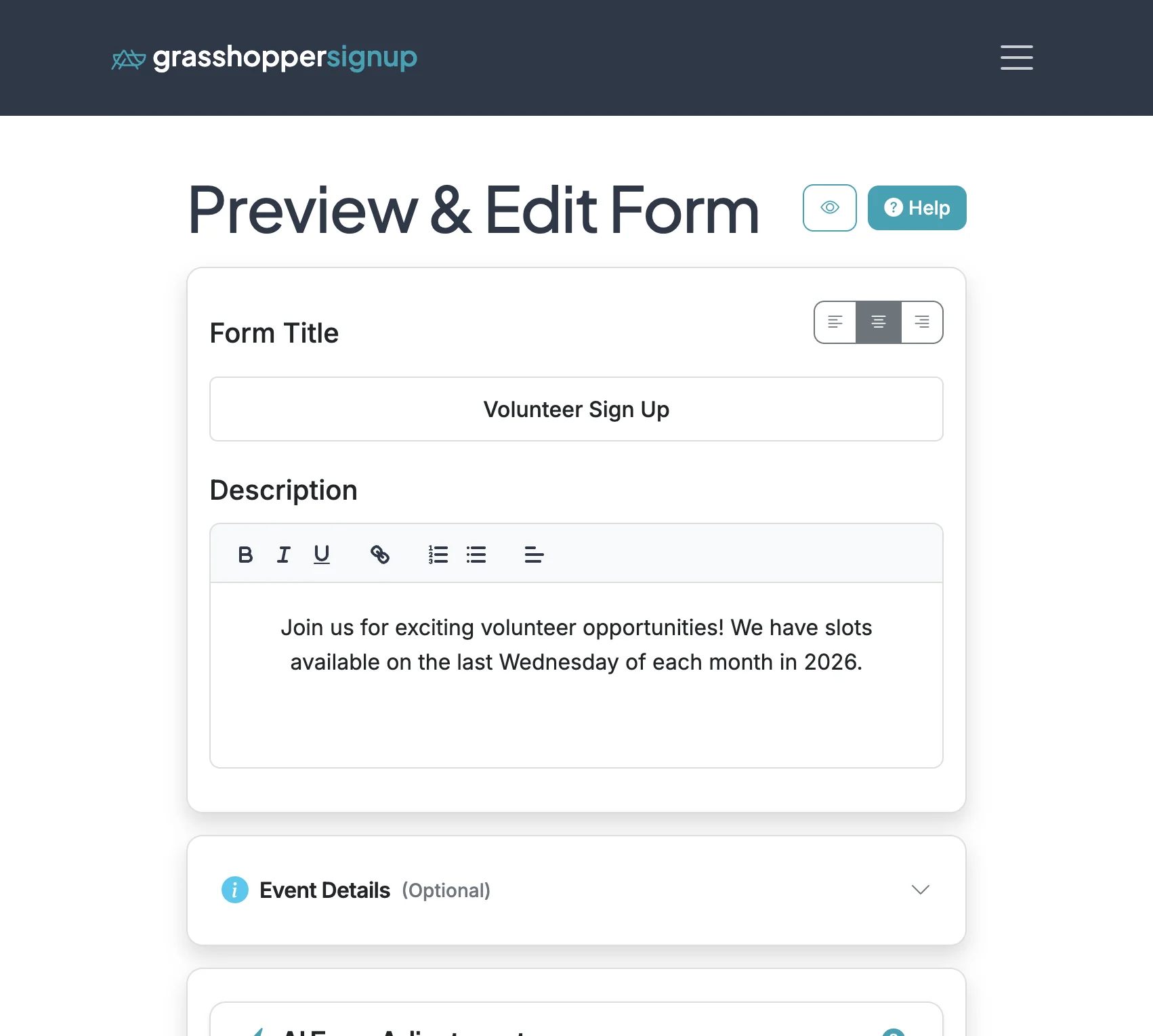
Start on the Edit page of your form.
2
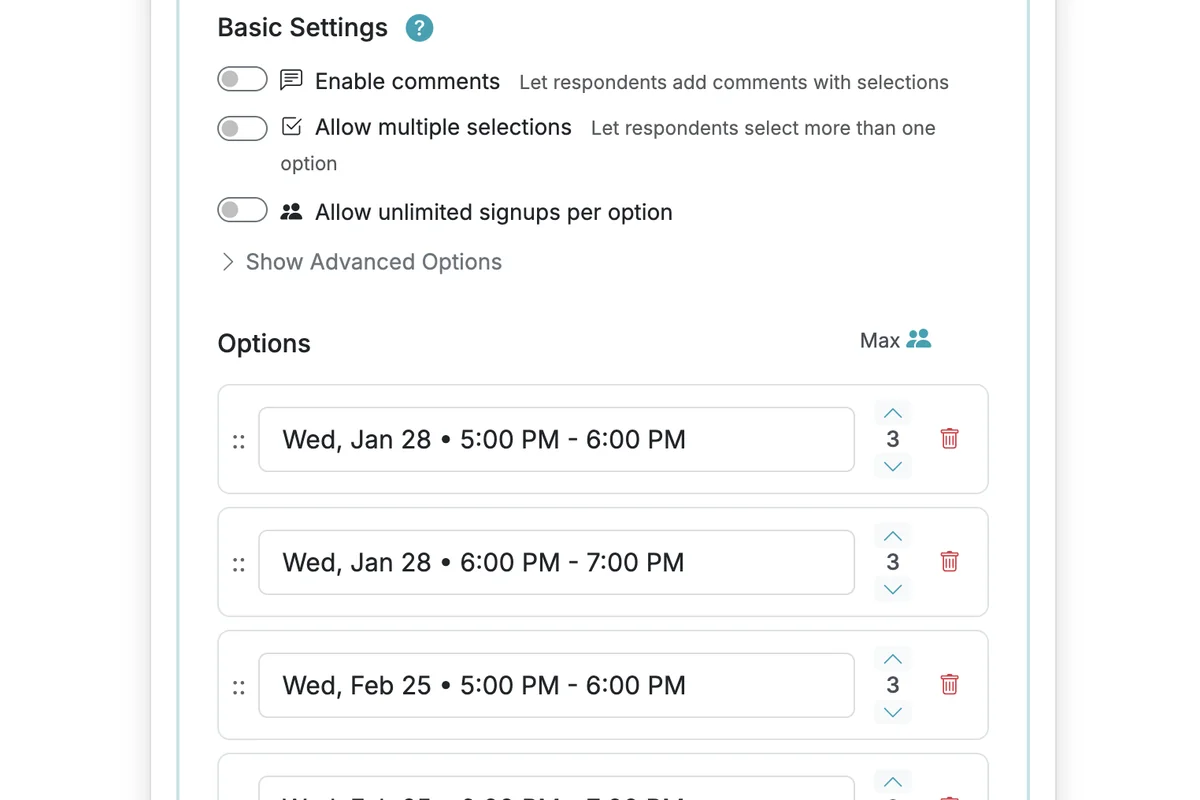
For this form, we have 2 options listed for the last Wednesday of every month in 2026 (24 total options over 12 months). Each option can accept 3 signups.
3
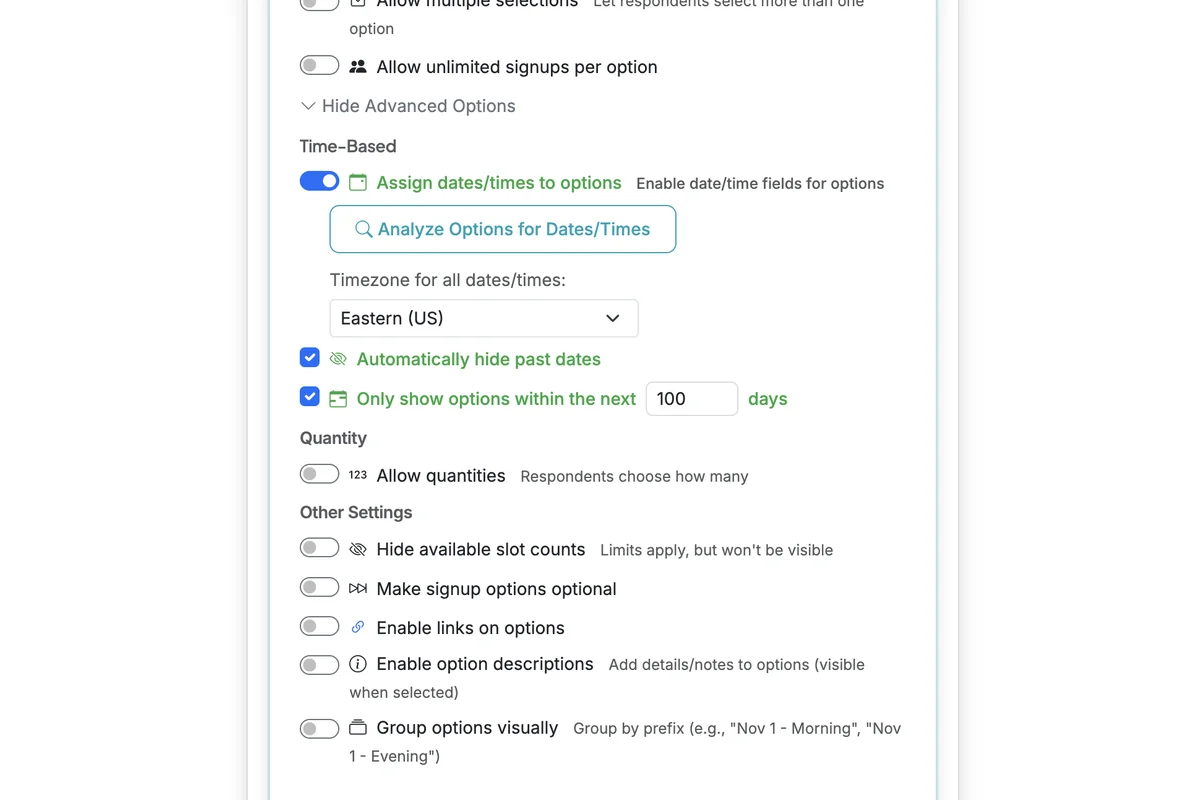
To save dates/times as an attribute for each option, we click Show Advanced Options, then select 'Assign dates/times to options'. That also allows us to set 'Automatically hide past dates' and 'Only show options within the next [100] days'.
![Screenshot showing To save dates/times as an attribute for each option, we click Show Advanced Options, then select 'Assign dates/times to options'. That also allows us to set 'Automatically hide past dates' and 'Only show options within the next [100] days'.](https://d11d0tehn5at7y.cloudfront.net/screenshots/user_NSMAg2_WhSu-MXIofYIKKg/guide_1765925224539_step_5_cropped_1765933466.webp)
4
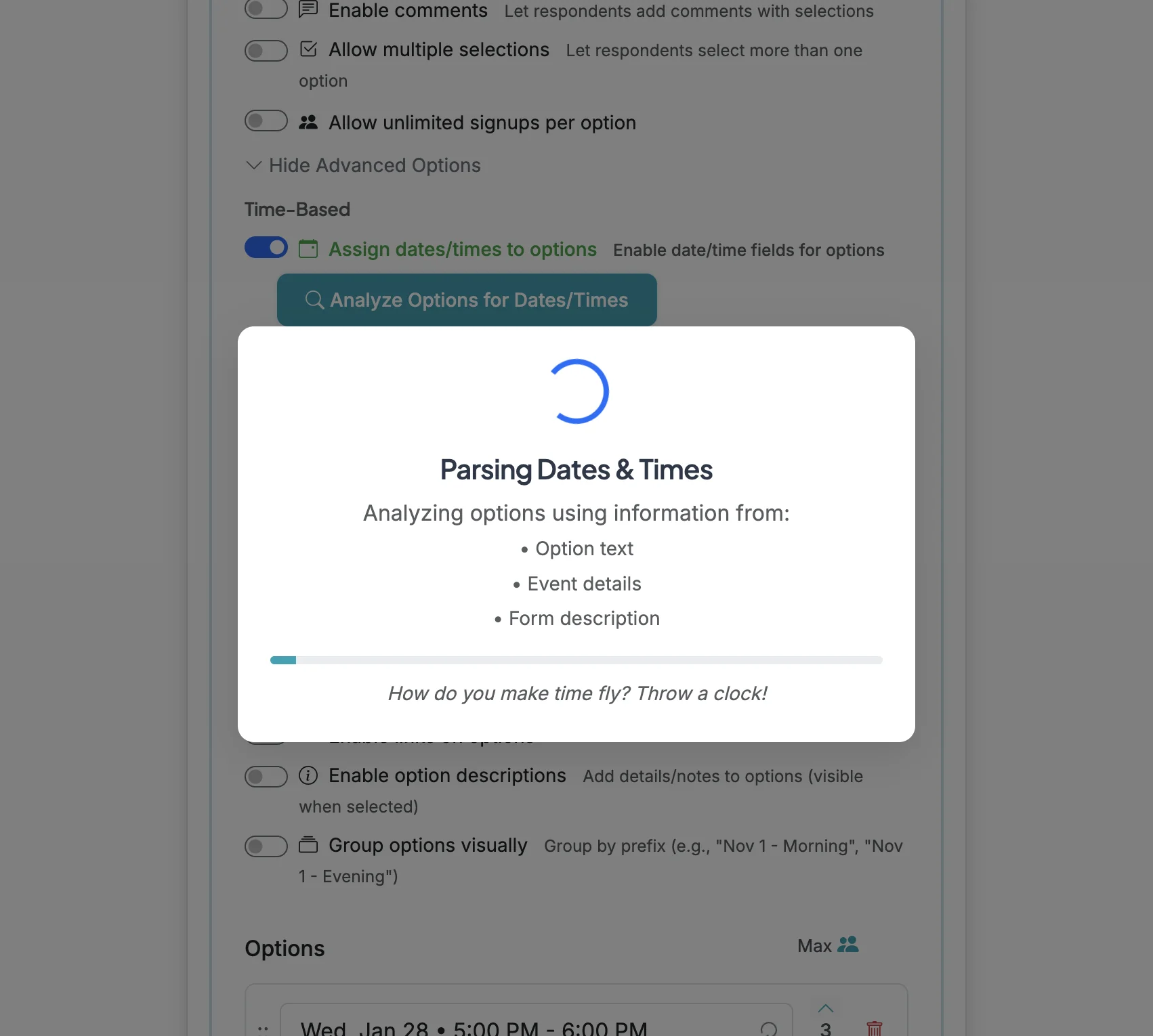
We will also click 'Analyze Options for Dates/Times' to have AI read each option label and propose a date/time that we can review for accuracy as the date/time attribute for each option.
5
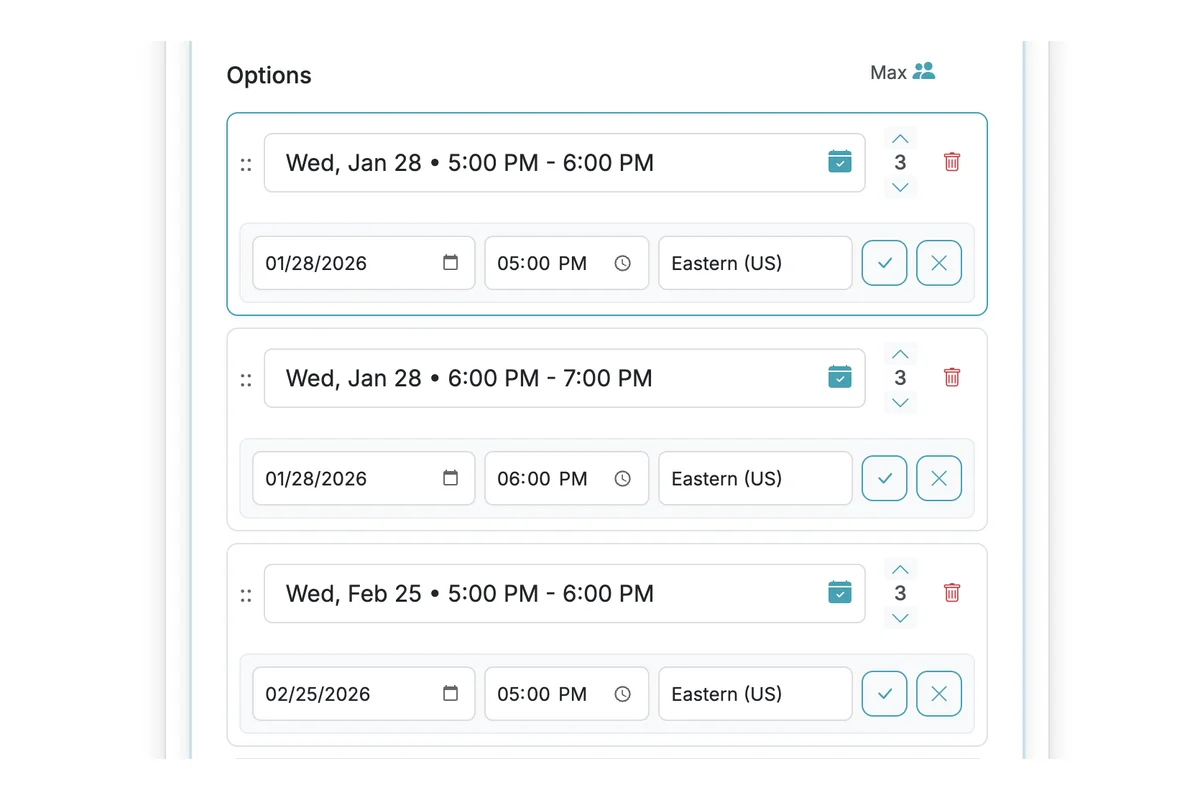
The AI will then parse each option and set a date/time in the field added below each option to review for accuracy.
6
AI will use the information in the option label as well as any saved info in the Event Details and Form Description to try and set dates/times for options. ALWAYS REVIEW ALL DATES/TIMES, especially YEARS since AI is not always correct.
7
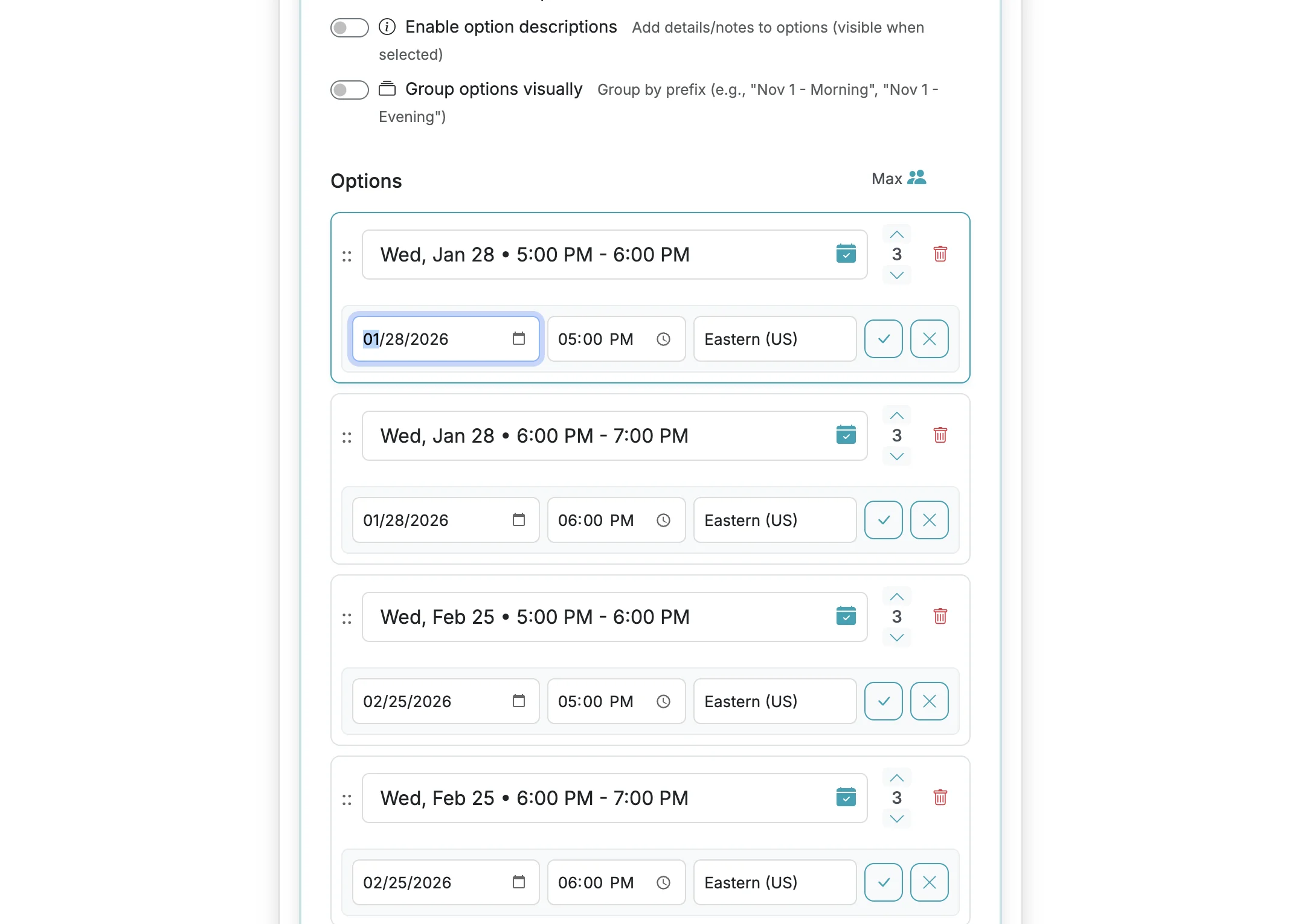
Dates and times can be added or adjusted manually and then saved to the option.
8
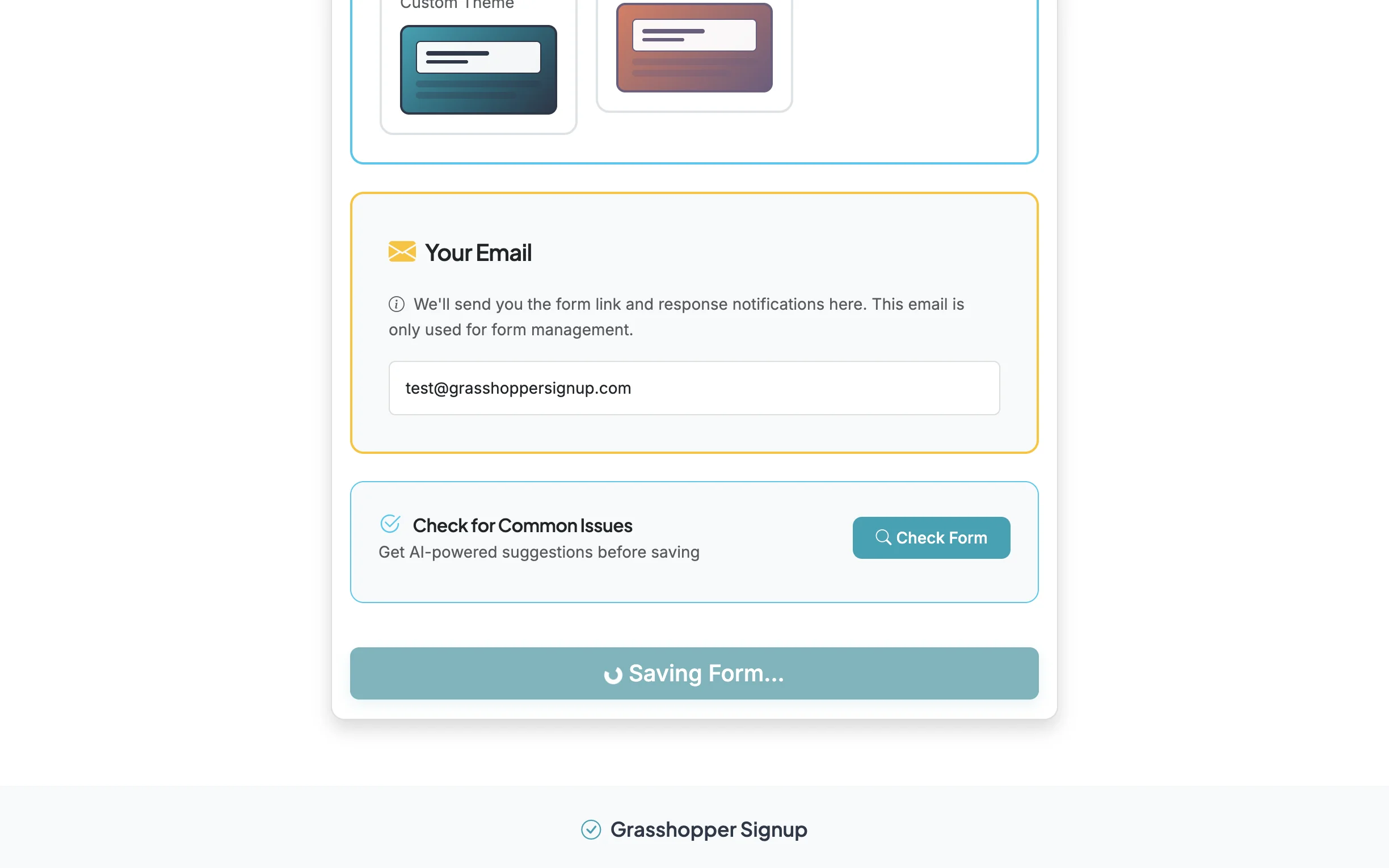
After you review dates/times for each option and configure your form and settings, SAVE the form.
VIEWING A FORM WITH DATE/TIME SHOW/HIDE SETTINGS
1
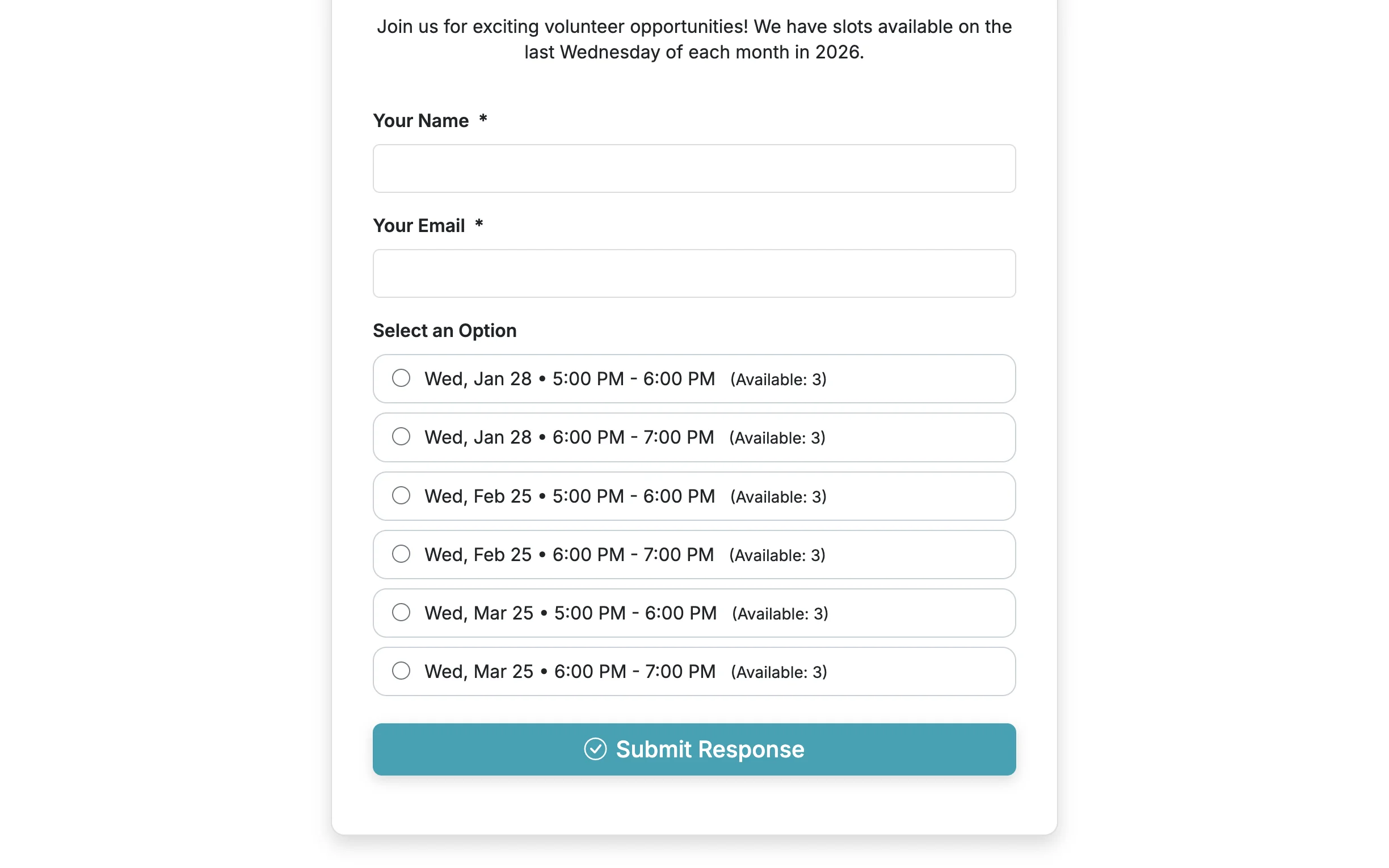
For this form (created in mid-December 2025), we set the form to only show the next 100 days of options, and hide any past options. So, the options available only show options with date attributes in the next 100 days.
USING DATES/TIMES WITH AUTOMATIC REMINDERS
1
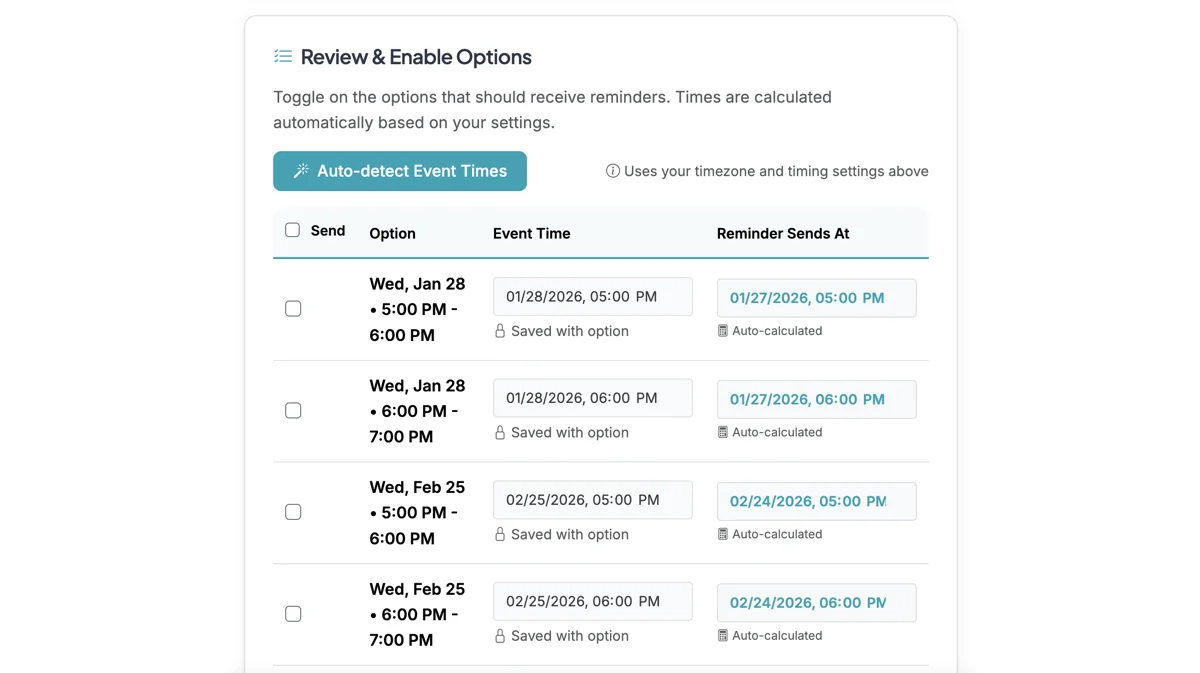
One benefit of setting date/time attributes for options is that Reminders automatically use the dates/times set for each option. This is not required, but can be helpful to minimize any errors in setting up reminder dates/times.
2
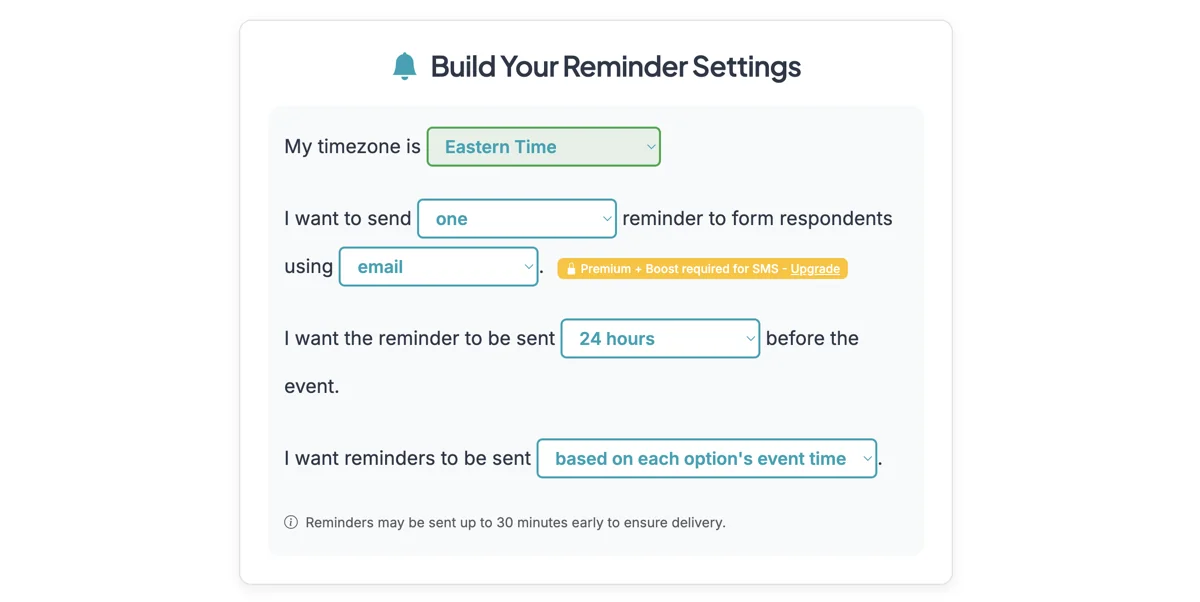
To setup Reminders, go to the Form Options page, scroll down to Form Settings and click 'Setup' on Automatic Reminders. That will take you to this setup page for Automatic Reminders.
3
When you scroll down to enable options for reminders, the date/time attribute saved on the form will automatically be used for the Event Time for each option where a date/time was saved.