Automatic Waitlists - How they work
Automatic Waitlists allow you to (automatically) notify people when spots become available on your signup form. When someone tries to sign up for a form that is completely filled, they can join a waitlist. When the Automatic Waitlist feature is enabled (Premium + Boost feature), they will automatically receive an email notification when a spot opens up.
Sections in This Guide
1
When someone joins a waitlist, and Automatic Waitlist is enabled, they will receive a notification if any slots become available.
2
Slots can become available if a respondent deletes their response, or the form creator adds additional options or increases capacity for existing options.
3
Waitlist members are notified of available slots in the order they joined the waitlist (first in, first out). If 1 slot is made available, a waitlist notification will be sent and will wait 12 hours before notifying the next person on the waitlist. The notification will provide a link to the form so they can take the available slot, and a link to "Skip me" which will allow the next person on the waitlist to be notified of the available slot.
4
Every 30 minutes, forms with active Automatic Waitlists are checked to see if slots are available, and the next waitlist member(s) are notified if slots are available.
5
IMPORTANT: Slots are NOT "HELD" for waitlist members. If any other respondent visits the form, they may take any available slot. The automatic waitlist system is designed to notify the waitlist in order, when slots become available. If they are notified of an available slot, and has been taken by the time they visit the slot, their waitlist position is not preserved, and they would need to sign up for the waitlist again to be notified when a new slot is made available.
6
If someone from the waitlist signs up for a slot on your form, their waitlist entry is NOT automatically removed.
ENABLE AUTOMATIC WAITLIST
1
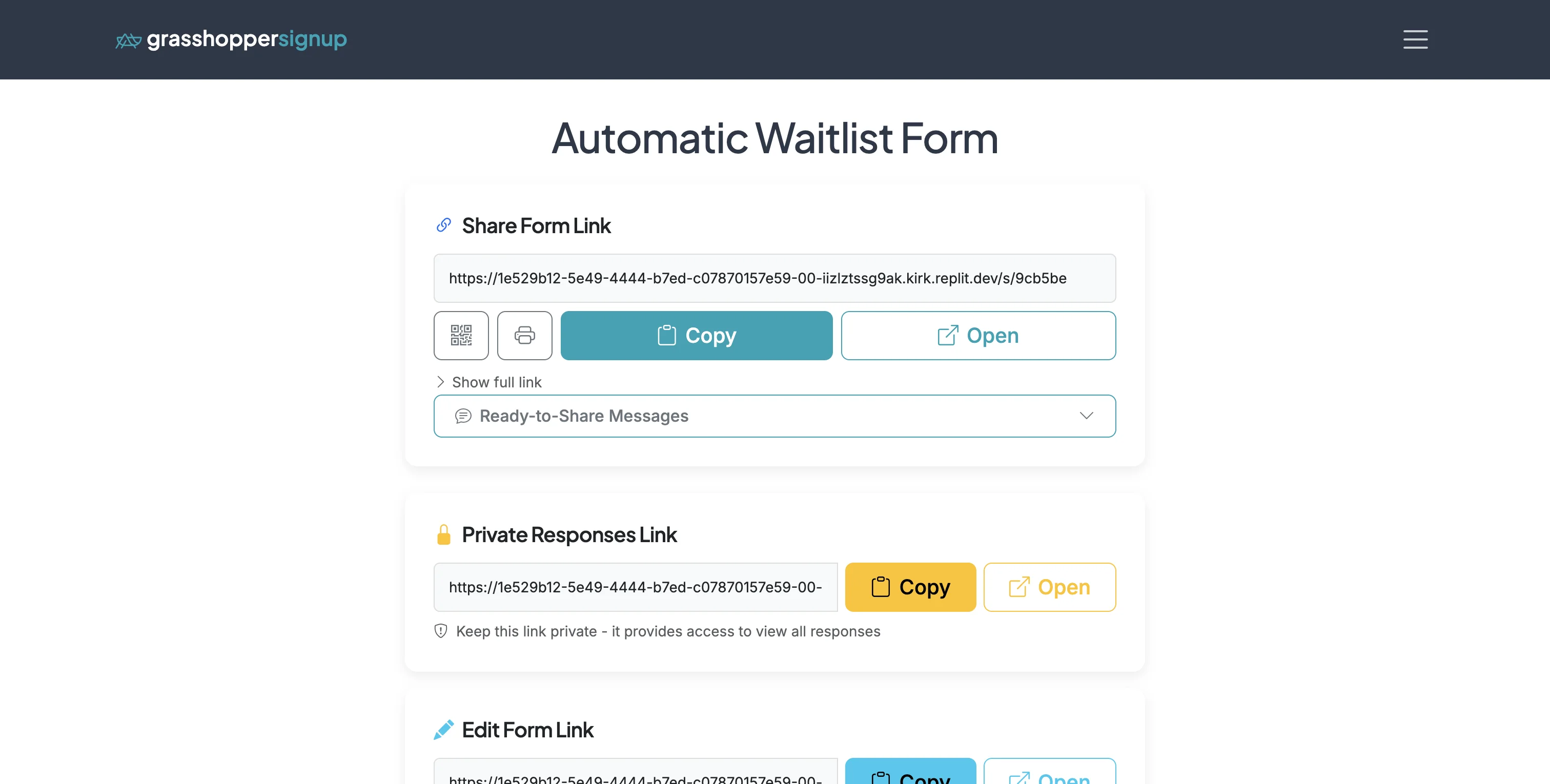
Start on the Form Options page. Scroll down to the Form Settings.
2
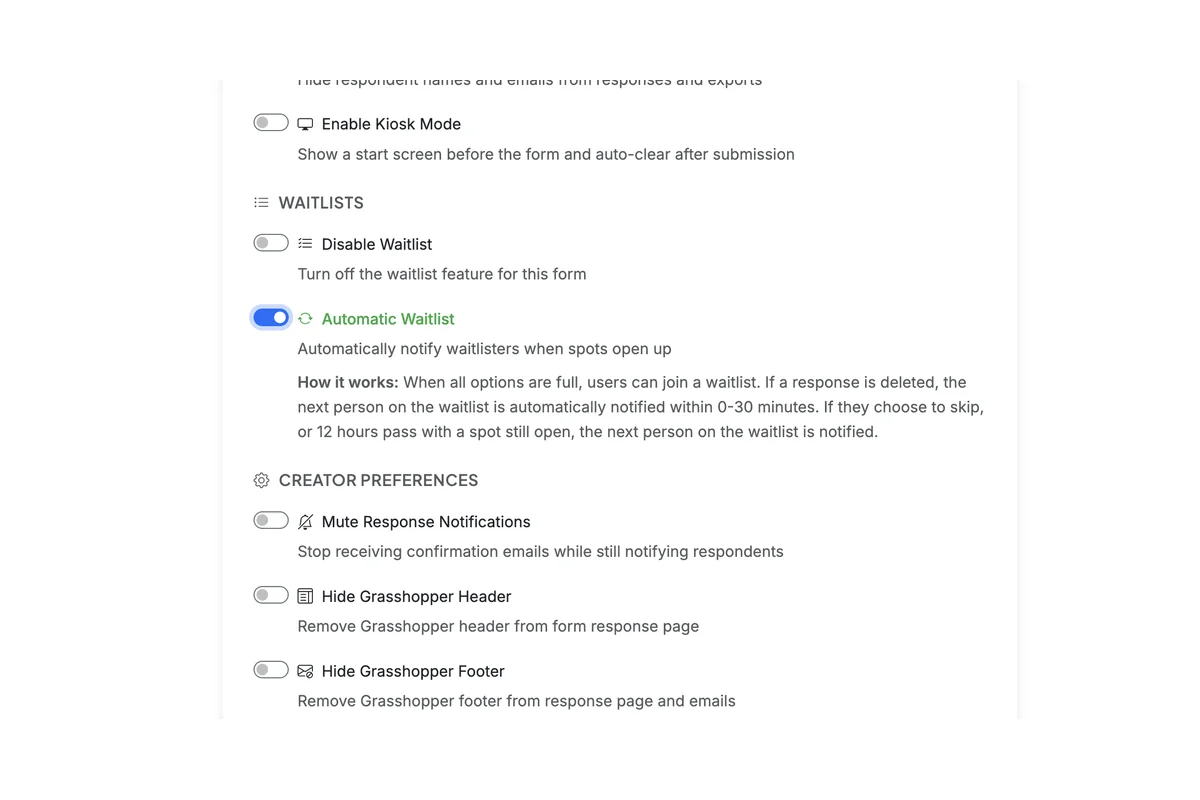
In the 'Waitlists' section, enable 'Automatic Waitlist'. This will automatically notify respondents on the waitlists, in order (first in, first out), if slots become available on your form.
JOINING AN AUTOMATIC WAITLIST
1
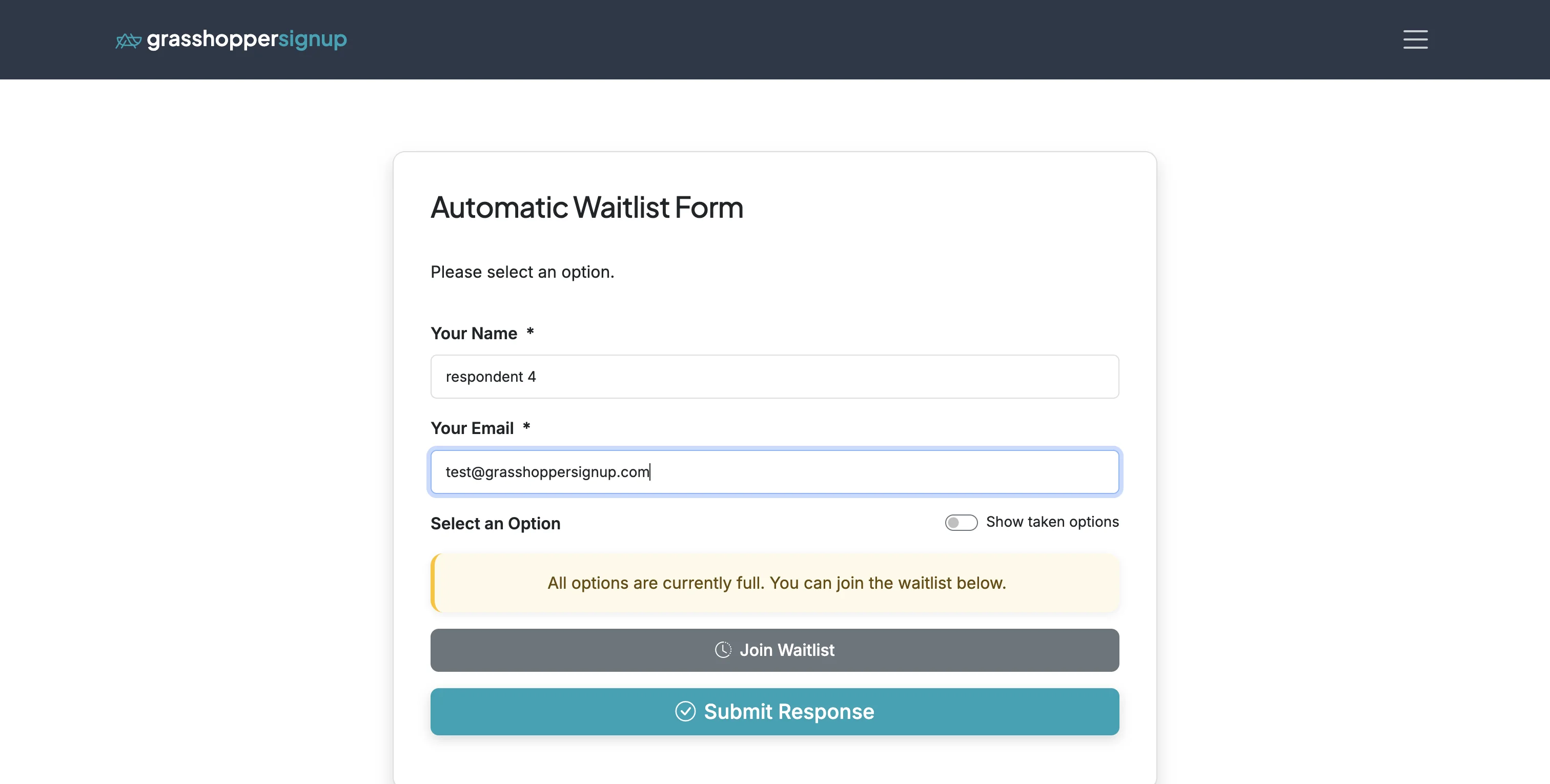
When a form has all options taken, new respondents will see the option to join the waitlist.
2
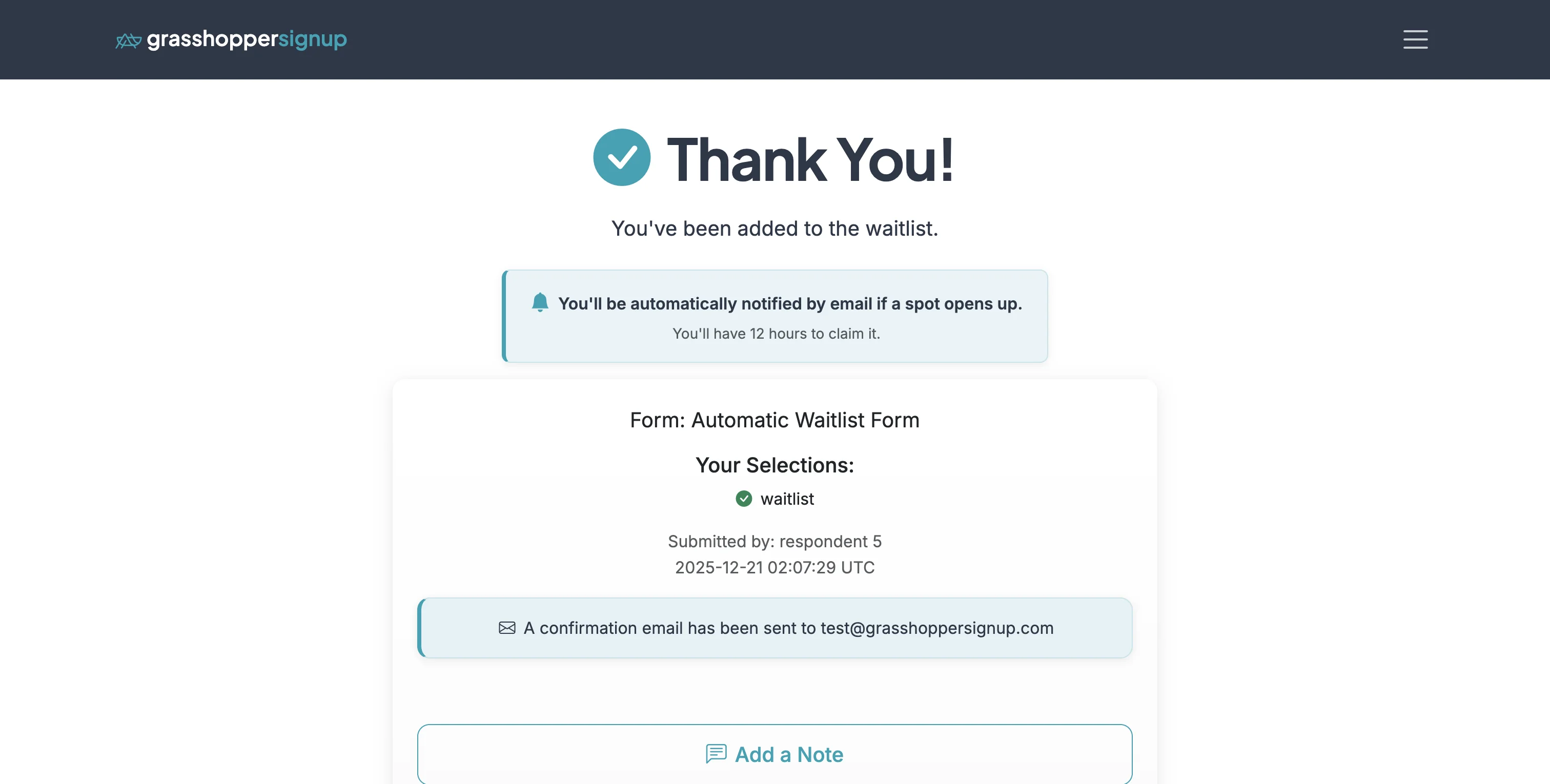
When respondents submit the form and join the waitlist, they will see a thank you page and receive a confirmation email.
VIEWING WAITLIST RESPONSES
1
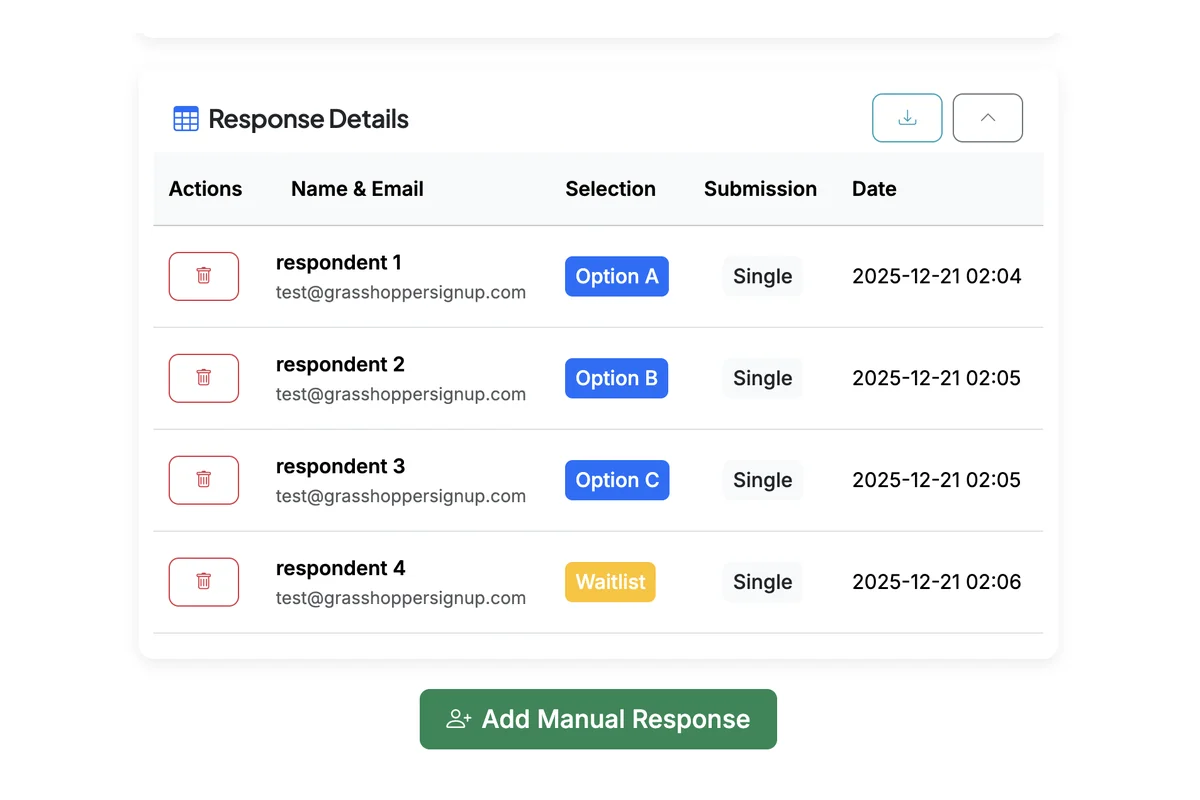
You can view waitlist responses alongside other responses on the Responses page in the 'Response Details' section.
2
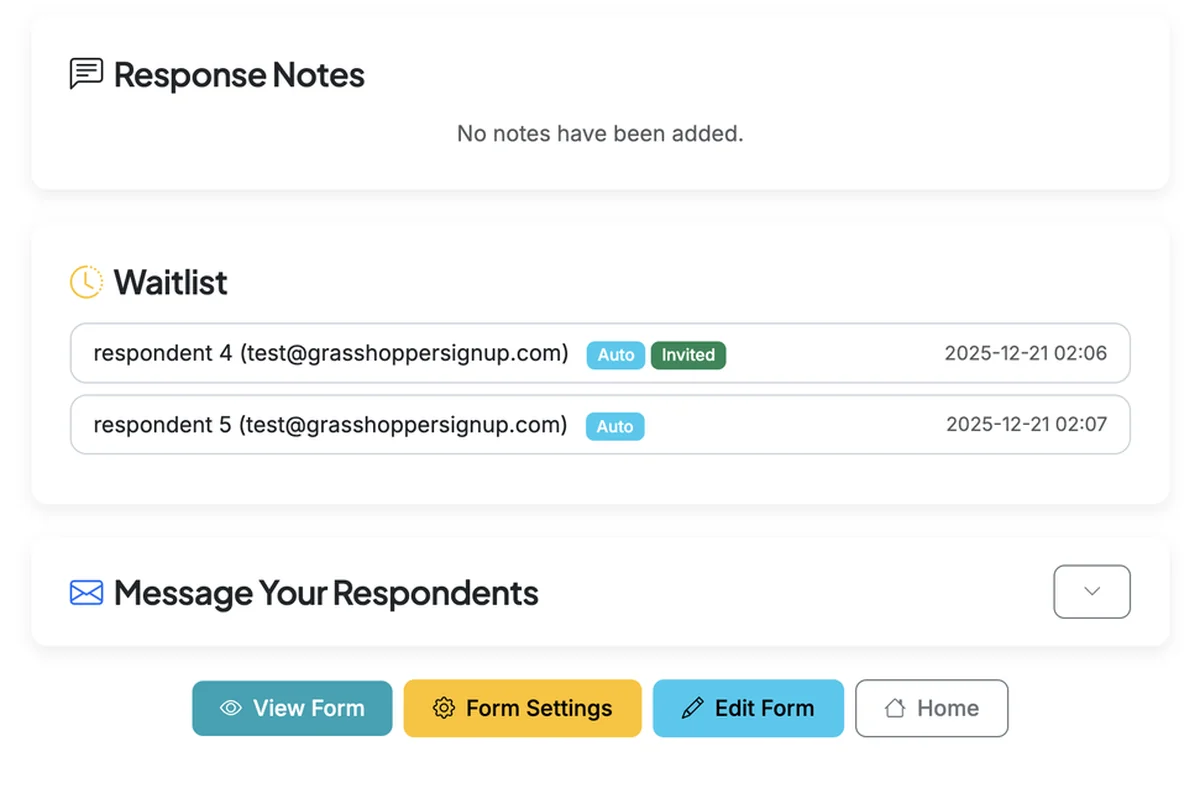
At the bottom of the Responses page, there is a special section for 'Waitlist' that shows the state of waitlist entries when Automatic Waitlist is enabled. Waitlist responses marked with "Auto" will be automatically notified if slots open up. When someone has been notified that a slot is available, they are marked with "Invited"