You can create Templates for your forms that are special form types that can only be copied. Templates can be shared (by link with anyone, or using collaboration features). Templates allow you to take any form and copy it as a template for re-use in the future. Templates can be edited by the owner of a template, or by collaborators if editing is enabled in Template settings.
Steps:4
StepHopper User
StepHopperhttps://stephopper.com/
1
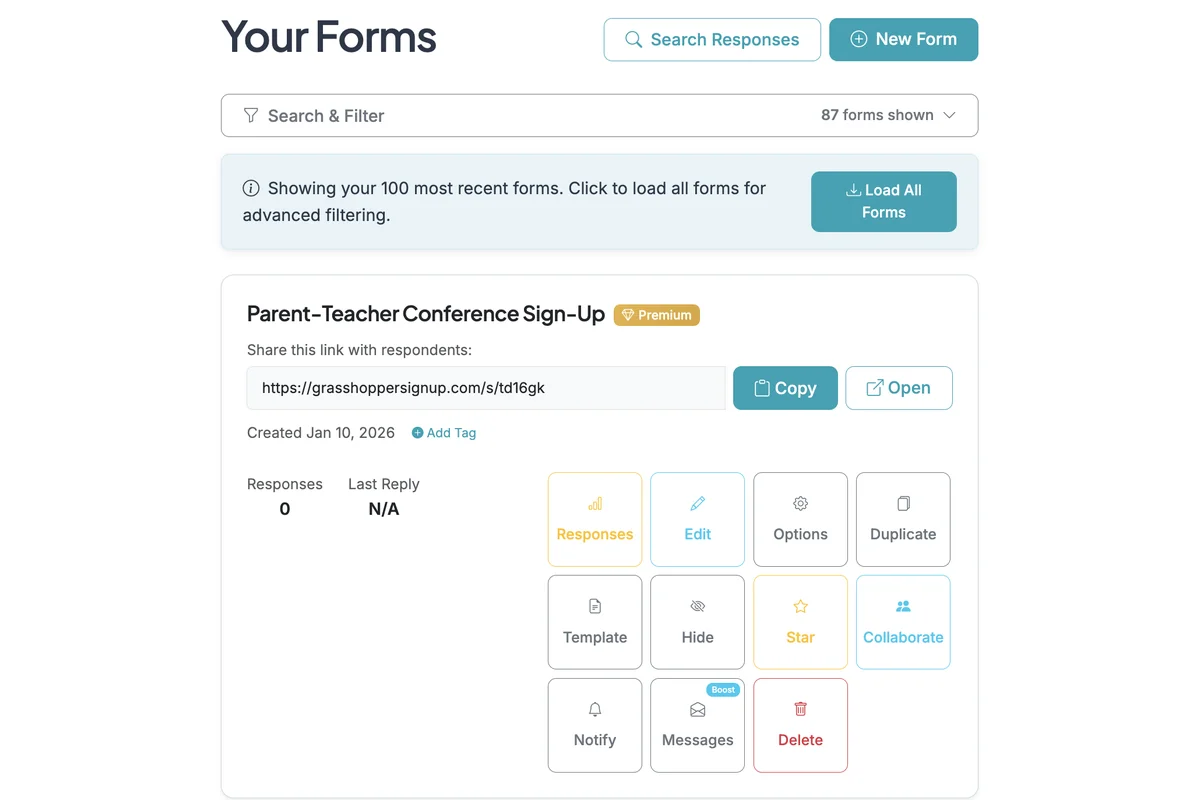
Start on your dashboard. To create a template from an existing form, click the Template button.
2
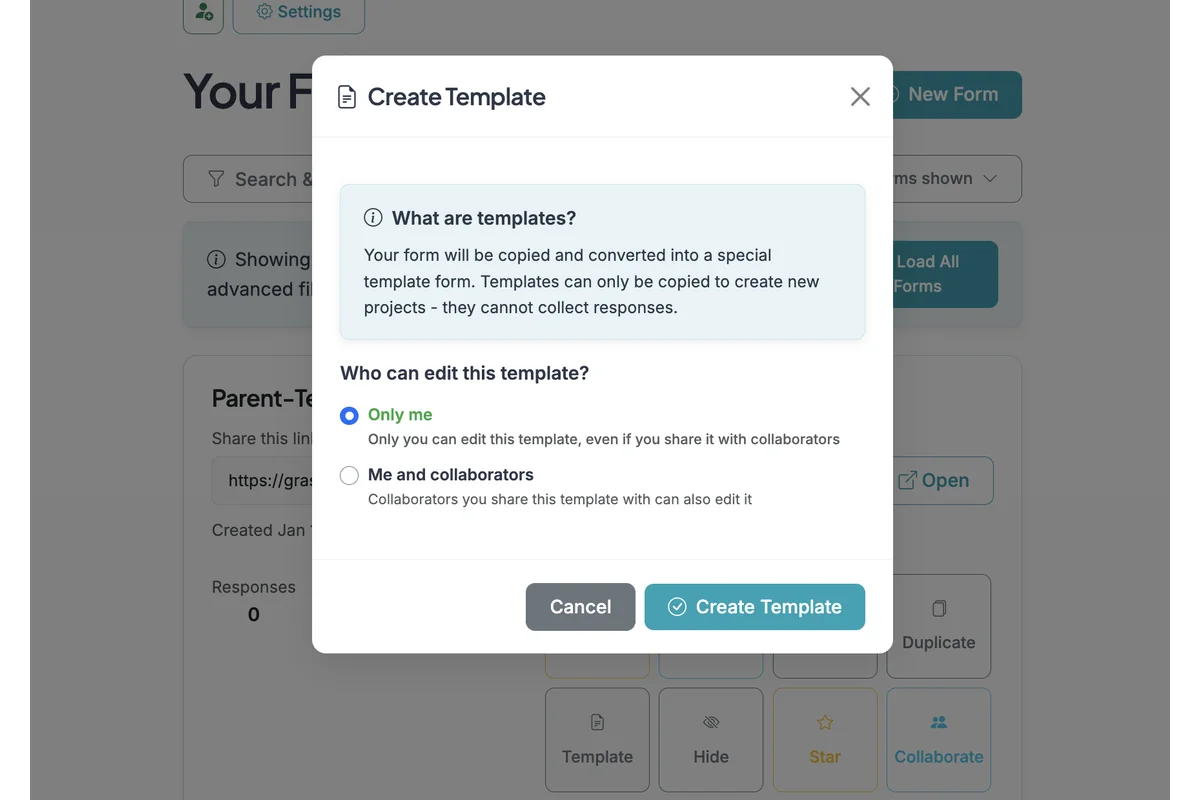
When you create a template, your form is duplicated to a new form that is a special Template only form. This new Template form cannot be submitted, and can only be used to make copies of the template. In Template settings you can choose whether collaborators (only those you specifically share the template with in collaboration settings) to modify the template.
3
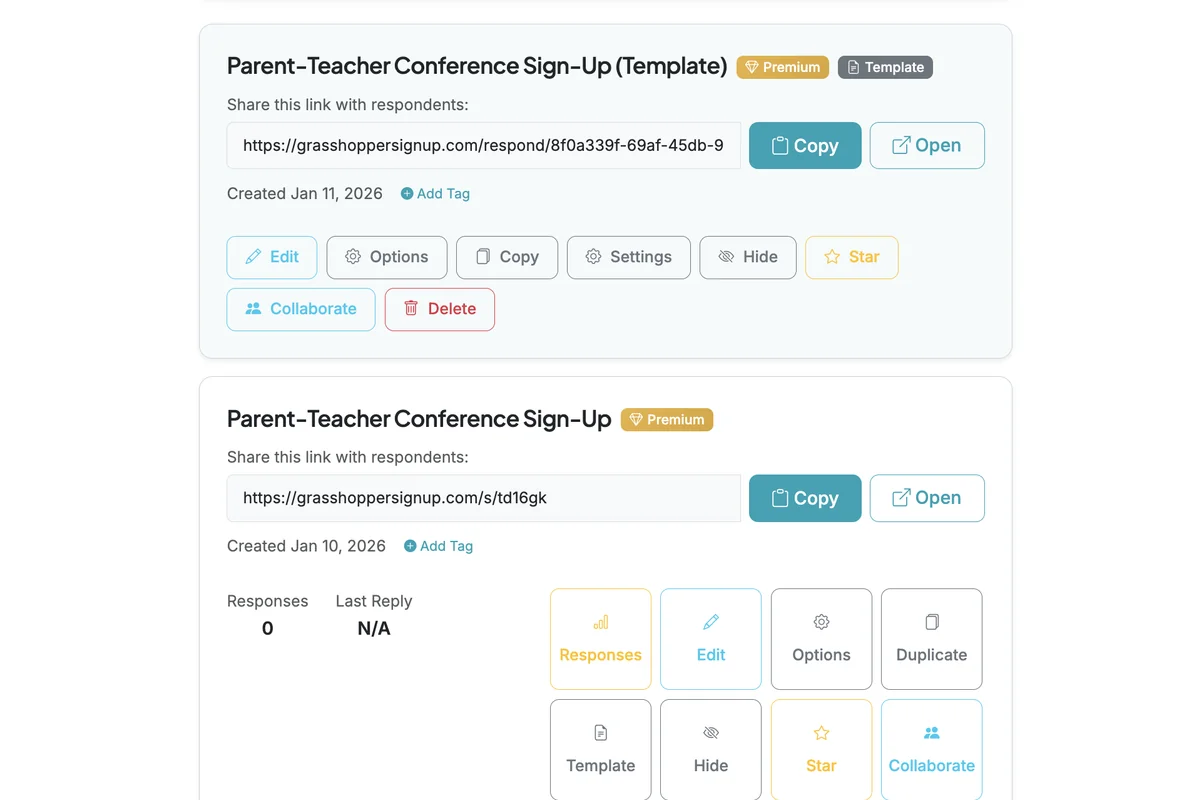
After you have created a Template, you will see it show up as a Template form in your list of forms. Template forms have different options and settings than normal forms. You can share templates by sharing the template form link, or you can add collaborators who will see the template in their account. Per the step above, you can adjust settings as desired to control whether collaborators can edit your Template.
4
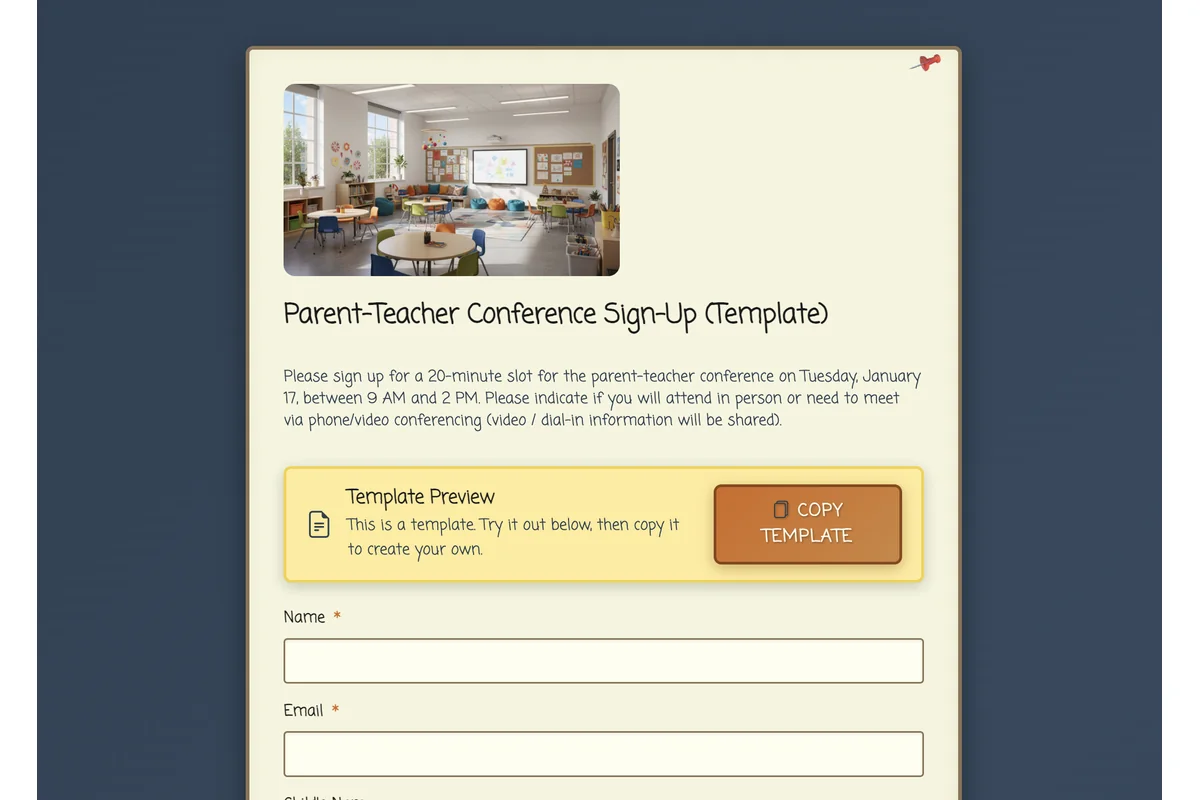
When you view a template, or share the link with others, they will see a special form that cannot be submitted, only copied. Copying at template creates a copy that can be edited and used like any normal form.