You can show questions conditionally based on the responses to other questions in your form. Conditional logic is basic, it only allows you to show or hide additional questions based on the response(s) you select from other questions in the form.
Steps:9
StepHopper User
StepHopperhttps://stephopper.com/
1
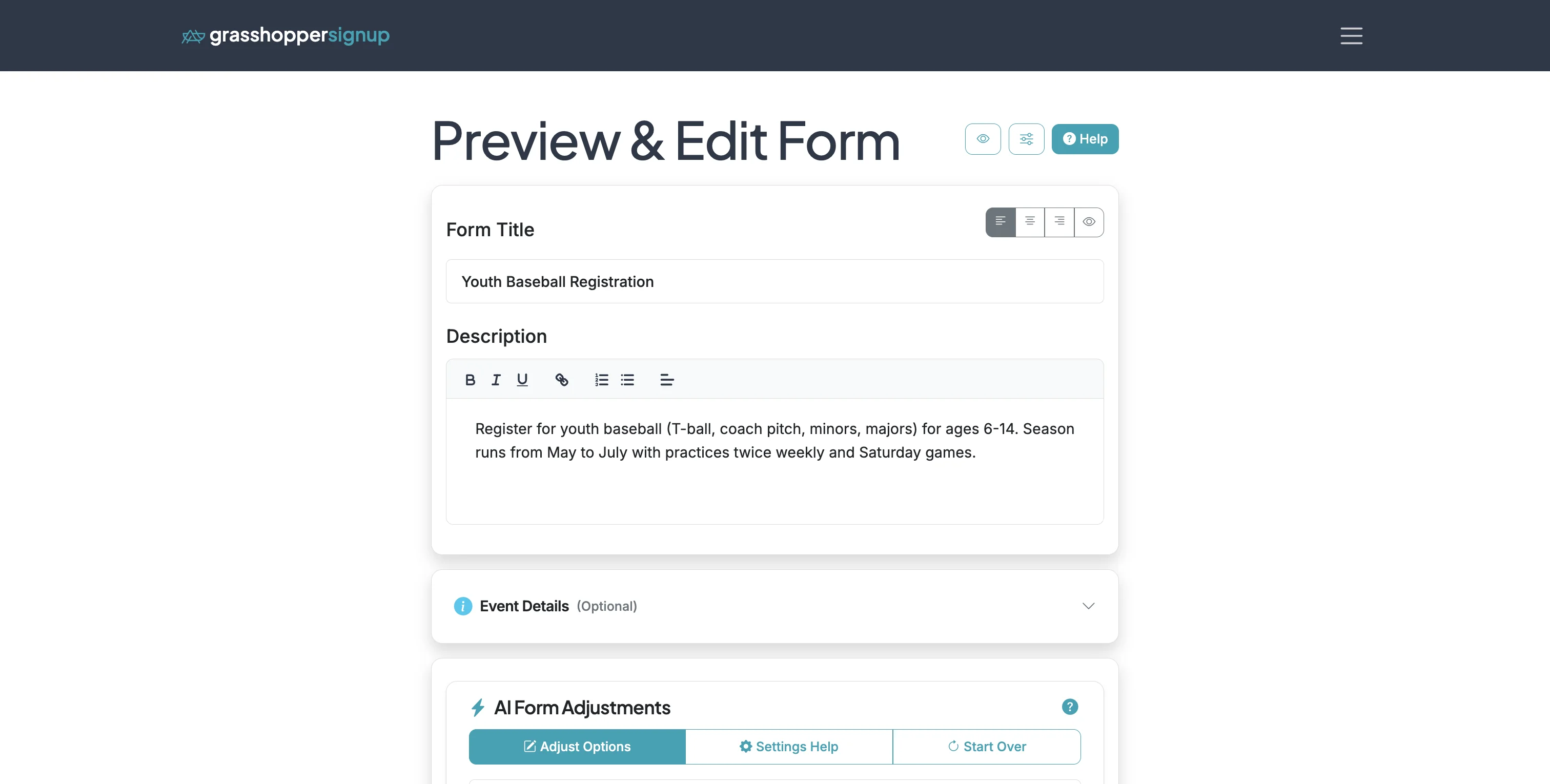
Start on the Edit page for your form.
2
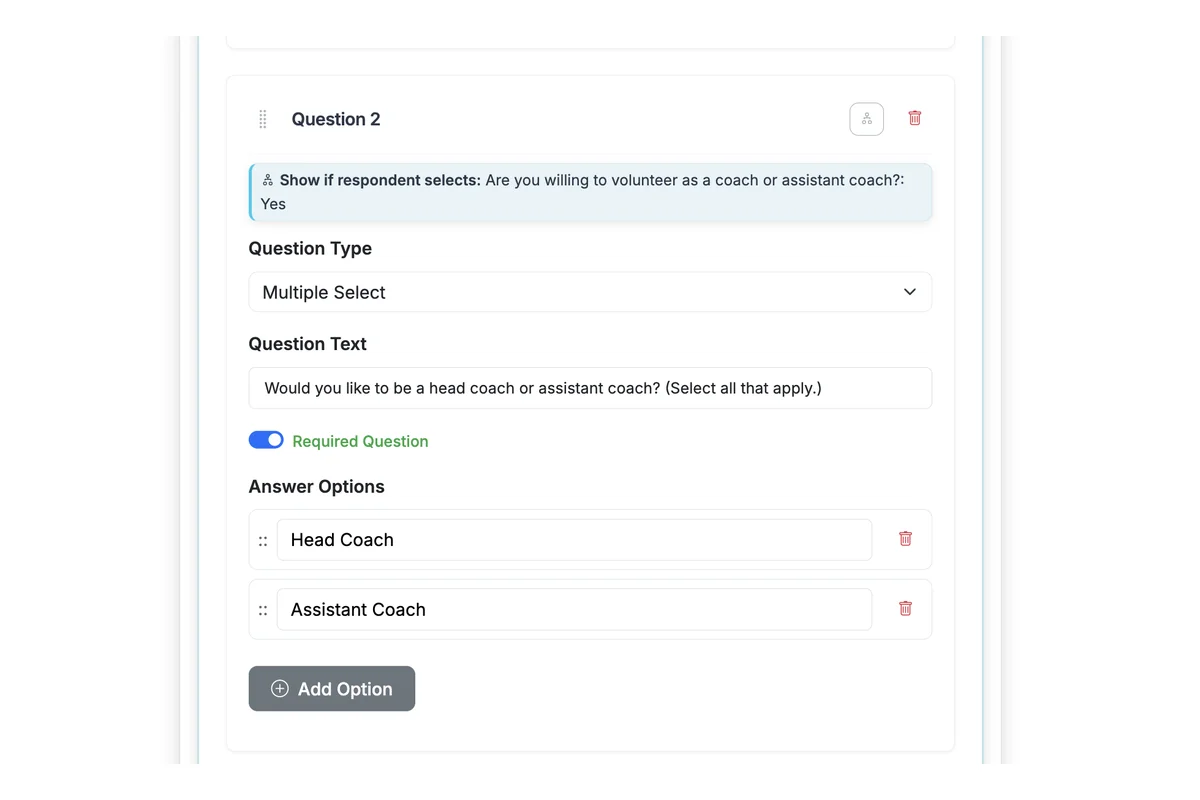
To setup conditional logic, select the logic button on any additional question.
3
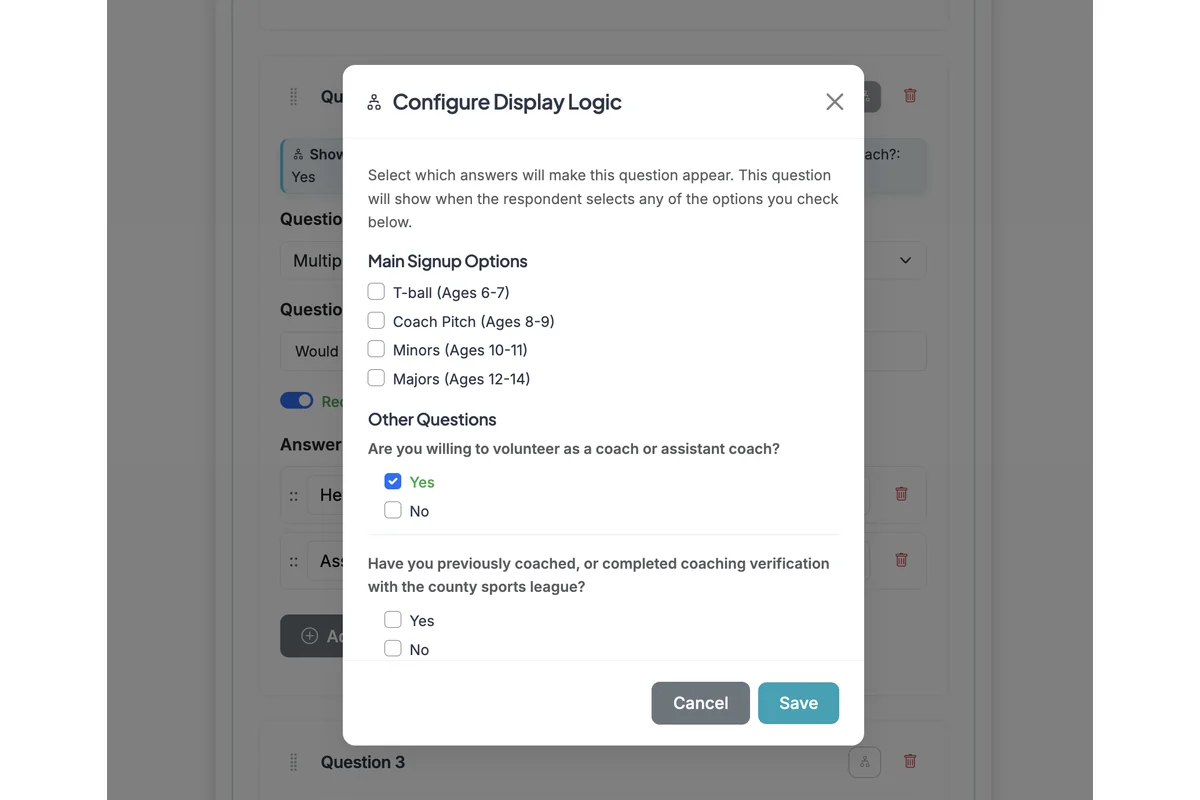
When you click the logic button, a modal will open, allowing you to configure conditional logic. Selecting an answer option to other questions will SHOW the question you are applying logic to if ANY of the answer options you choose are selected by a respondent. If you use conditional logic, your question will be hidden unless/until a form respondent has selected the options you have chosen for conditional display.
4
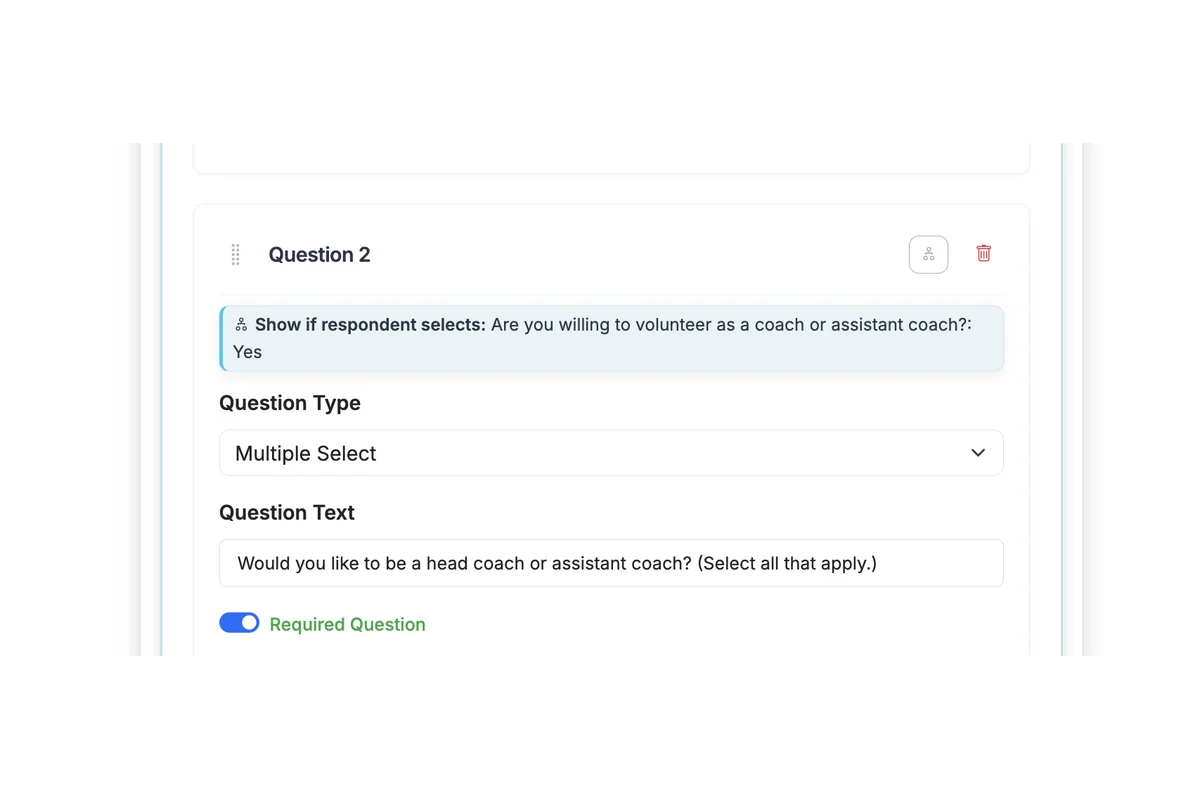
After you save a conditional logic setting, a descriptive text banner will indicate that logic has been set and provide an explanation of when that question will be shown.
5
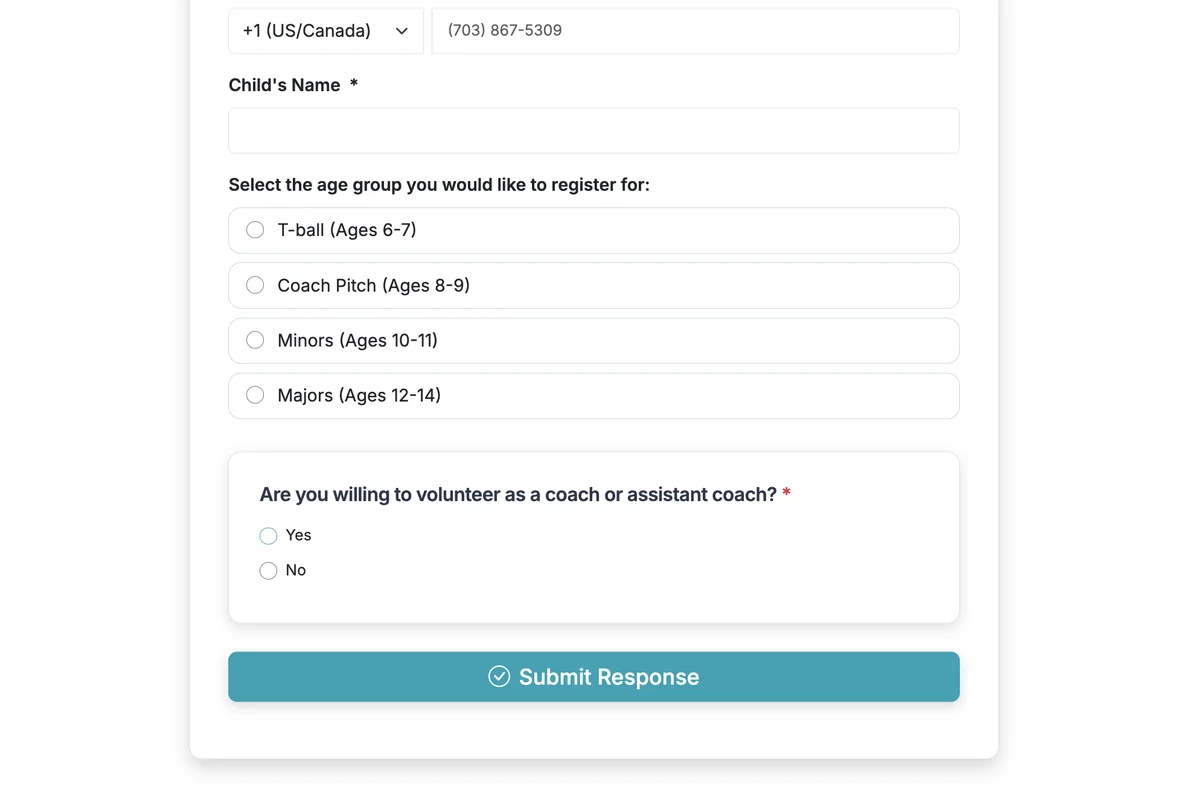
When a respondent views a form, they will only see conditional questions when they have selected the options that allow the conditional questions to show. This is a form where the user has not yet answered the question that triggers the conditional logic.
6
Click on input
7
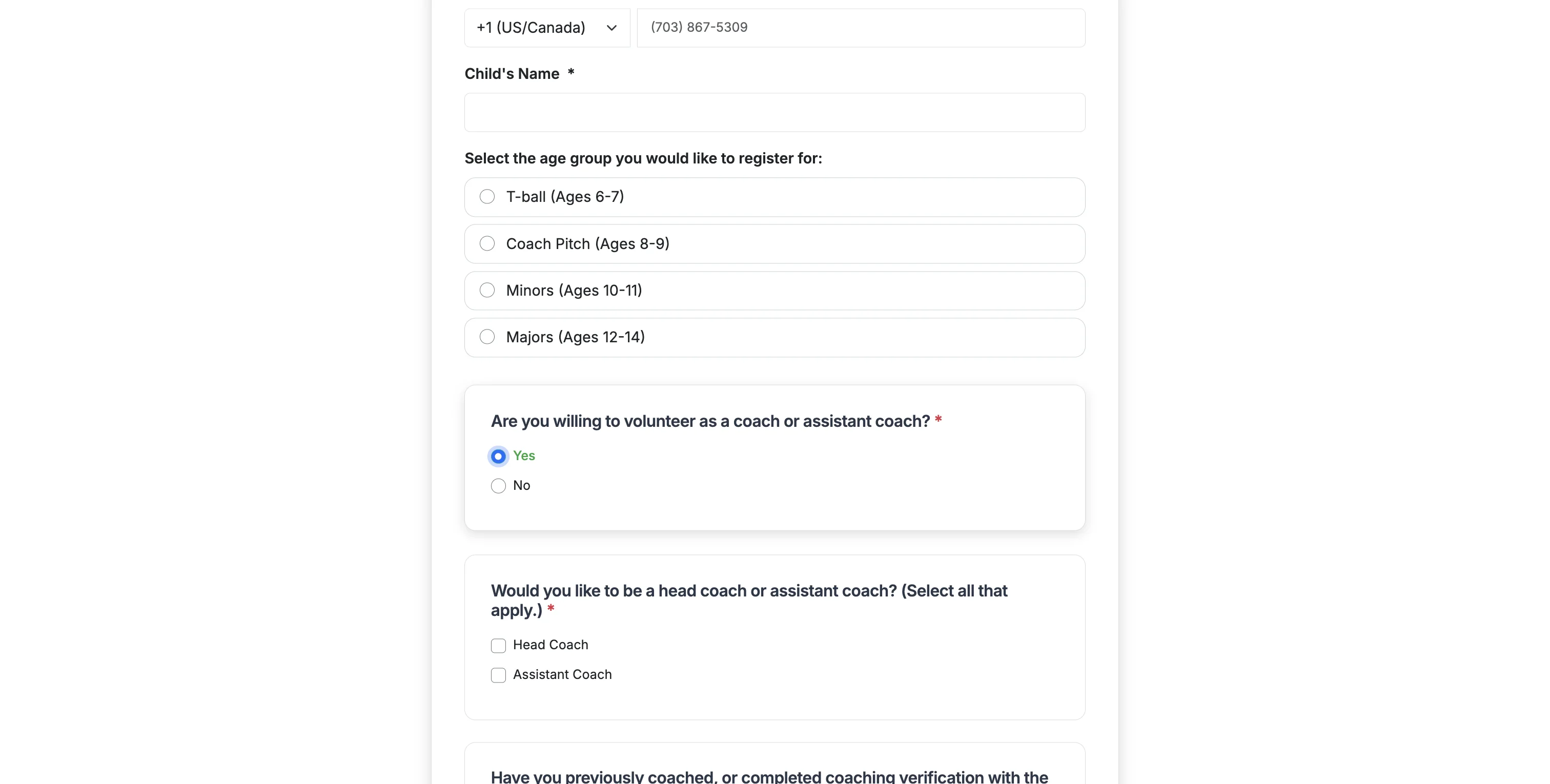
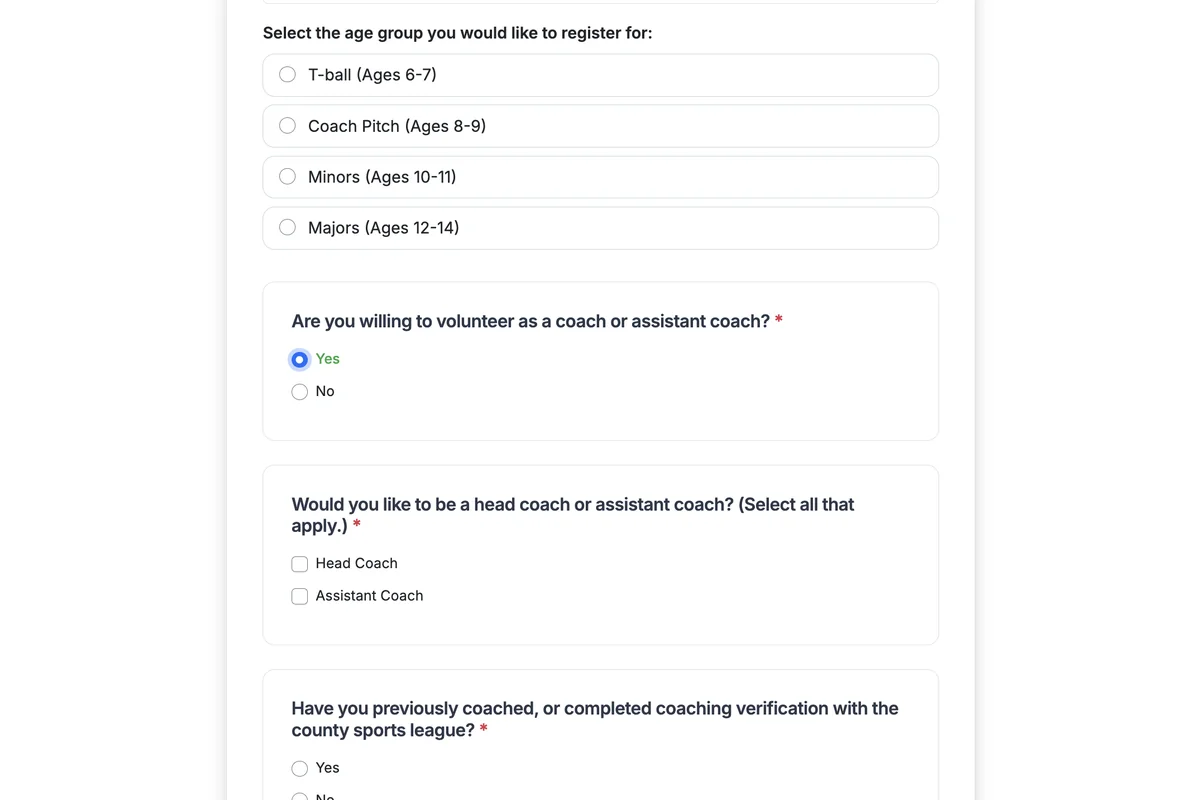
When a respondent selects an answer option that triggers conditional questions to show, they will instantly show up on the form.
8
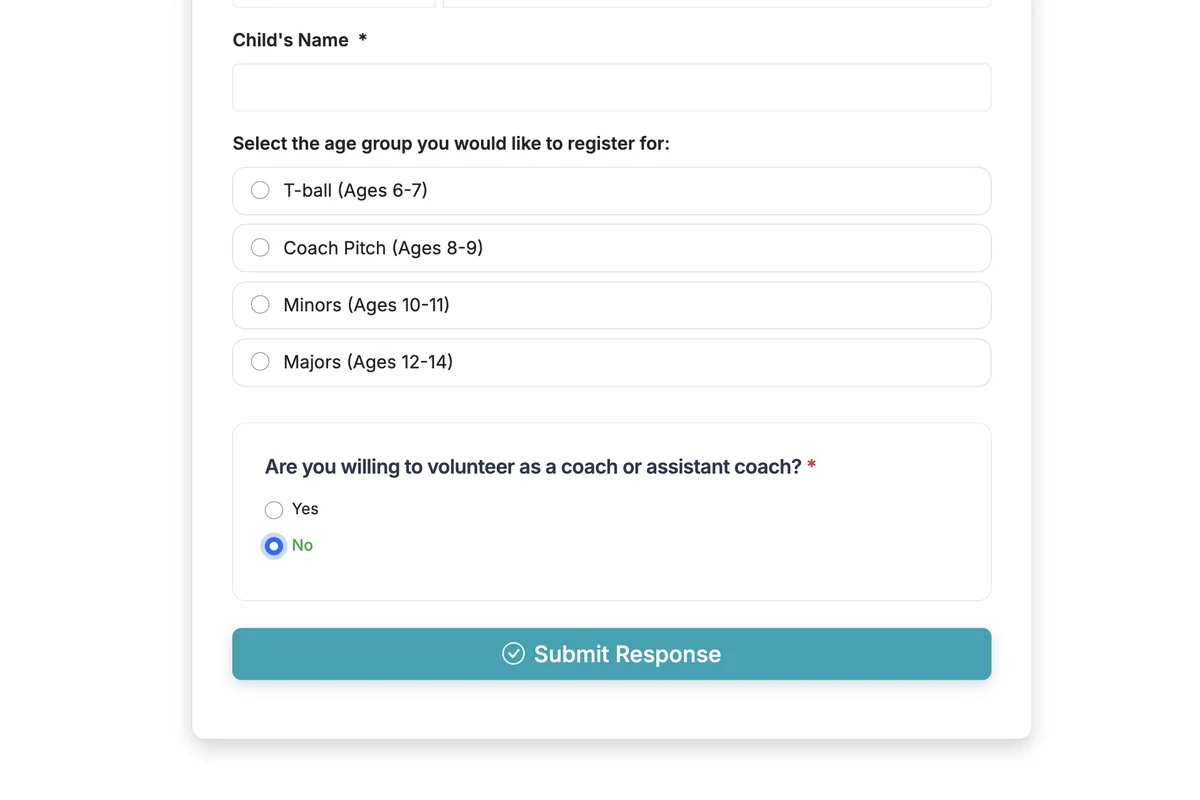
If a respondent selects an option that does not trigger the conditional questions to show on the form, they will not see those questions.
9
This is an example form (the one used in this guide) that uses conditional logic: https://grasshoppersignup.com/s/tvpryc