This guide will walk you through adding a new insurance policy into Curve. You will need to have the policy details handy and will need the subscriber to be already entered as a non-patient (if they're already an existing patient that's fine too).
Steps:8
StepHopper User
StepHopperhttps://stephopper.com/
1
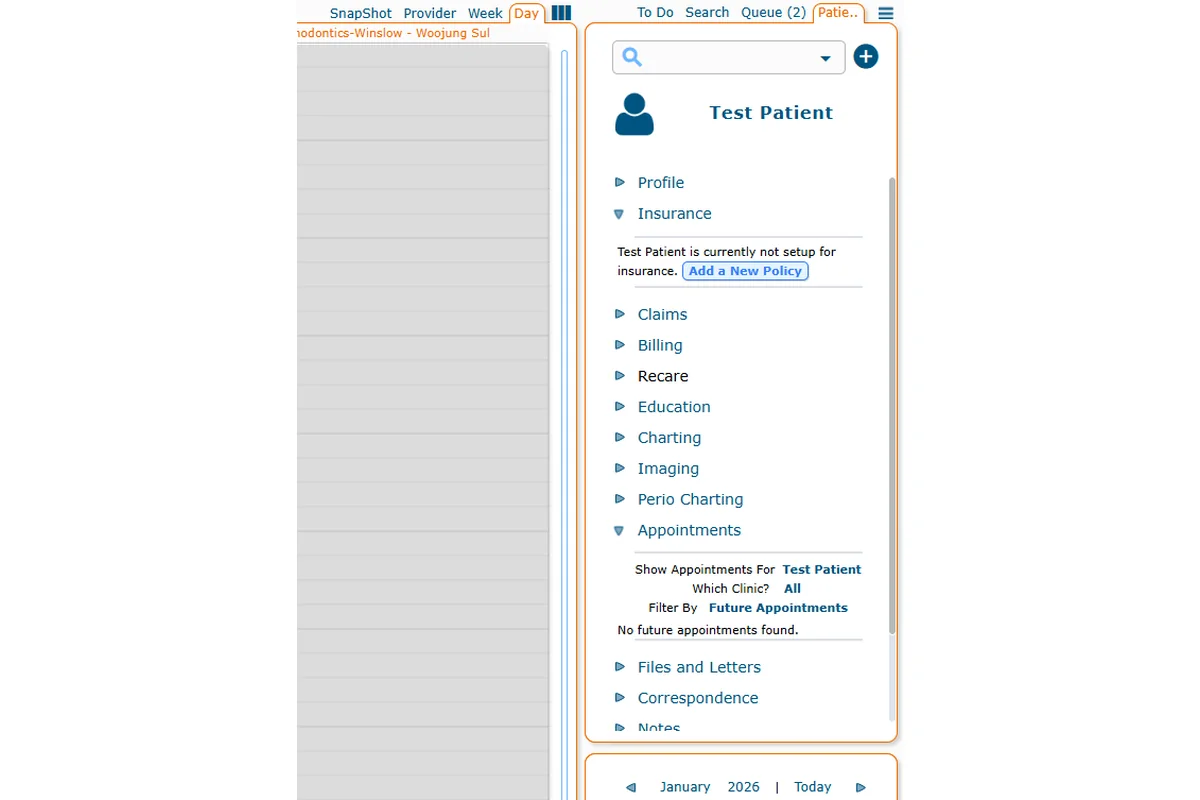
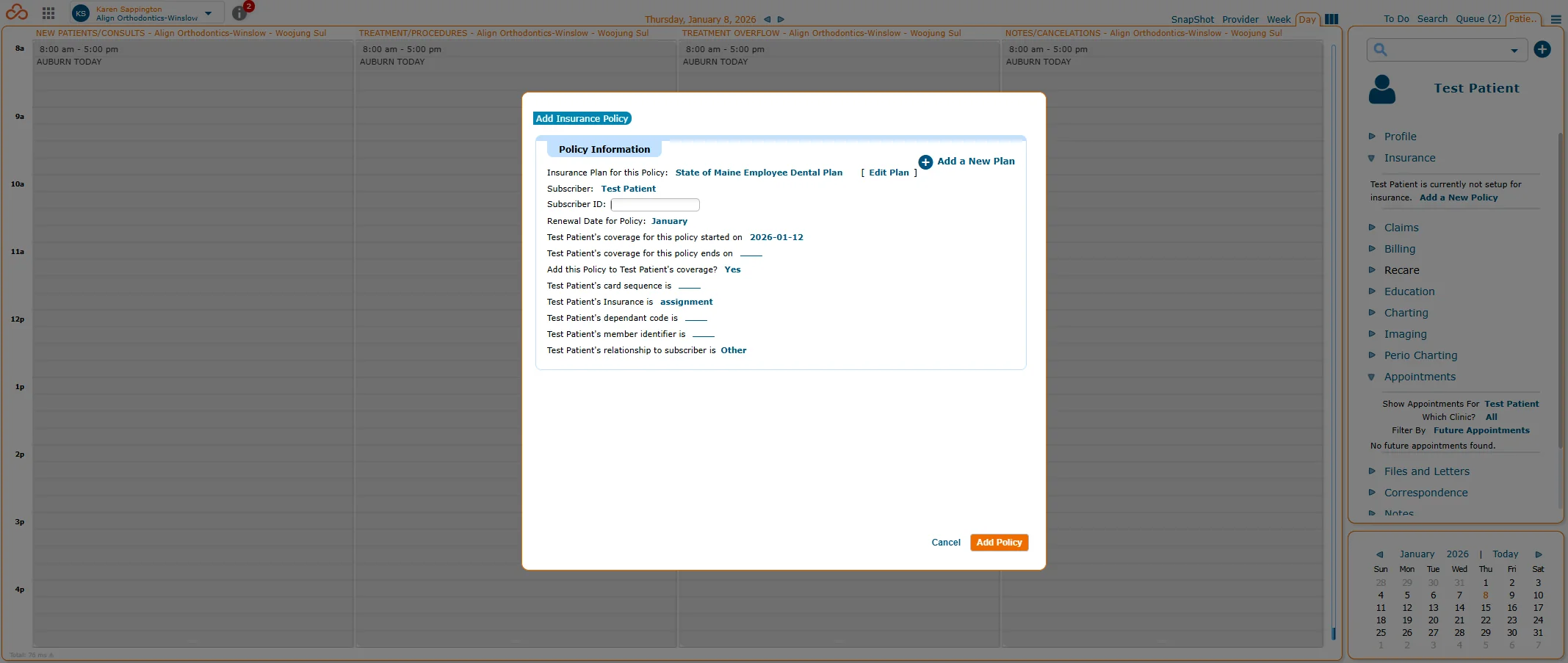
Under patient's Insurance tab (use drop down arrow), click "Add a New Policy".
2
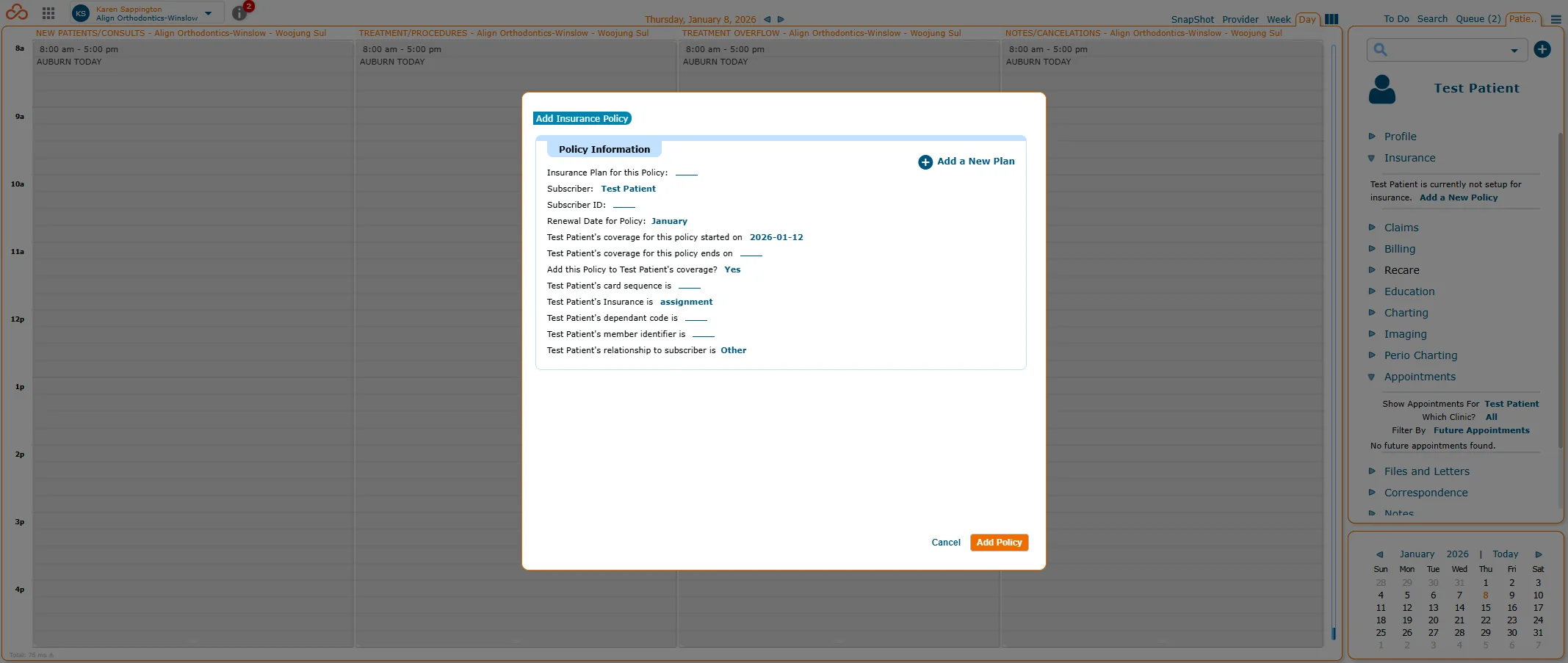
This will bring up a new pop-up window.
3
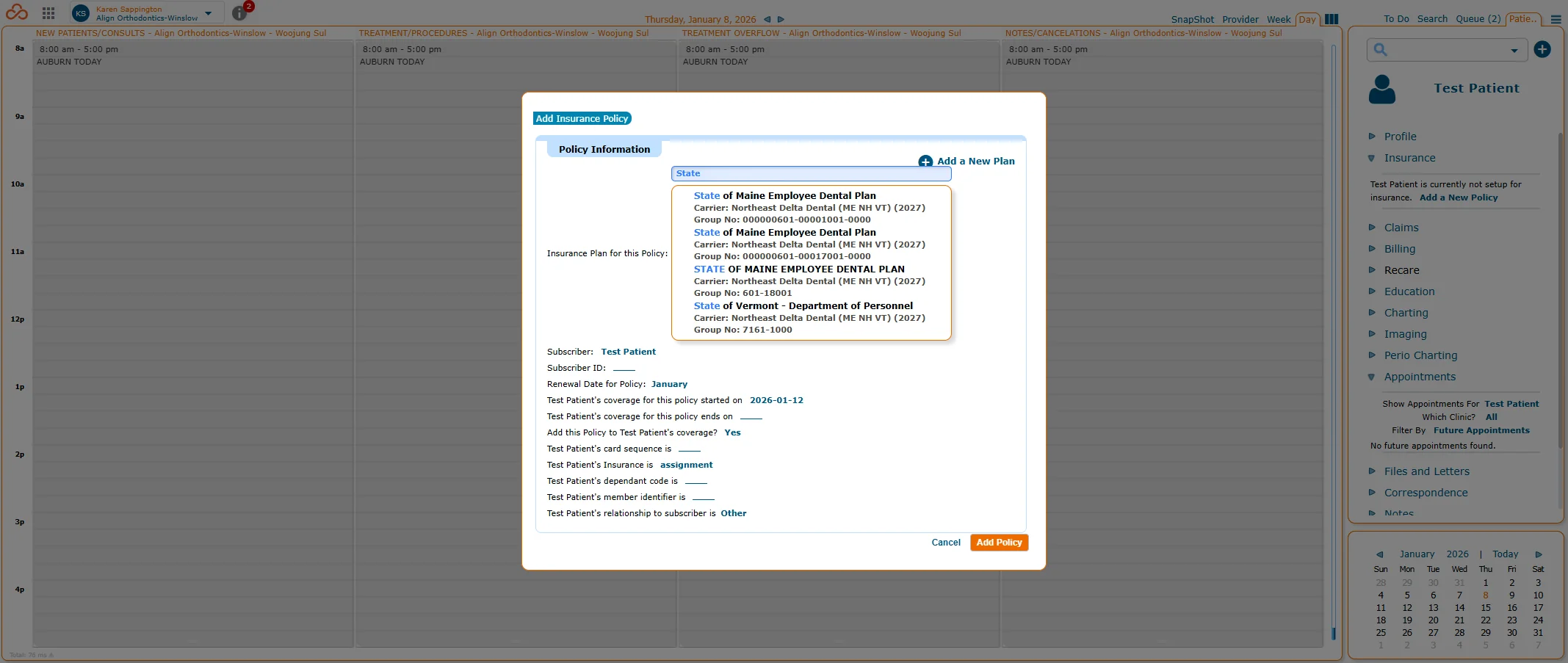
Under "Insurance Plan for this Policy" start typing the Plan name (often plan name is the name of the employer). A list will appear if the plan exists. Verify the group number matches EXACTLY then select the plan from the list. If it does not appear in the list try entering the group number in that same text box to see if that works. **NOTE: If it still does not appear you will need to add a new plan. Please refer to other guide on How To Enter a New Insurance Plan and discontinue using this guide.
4
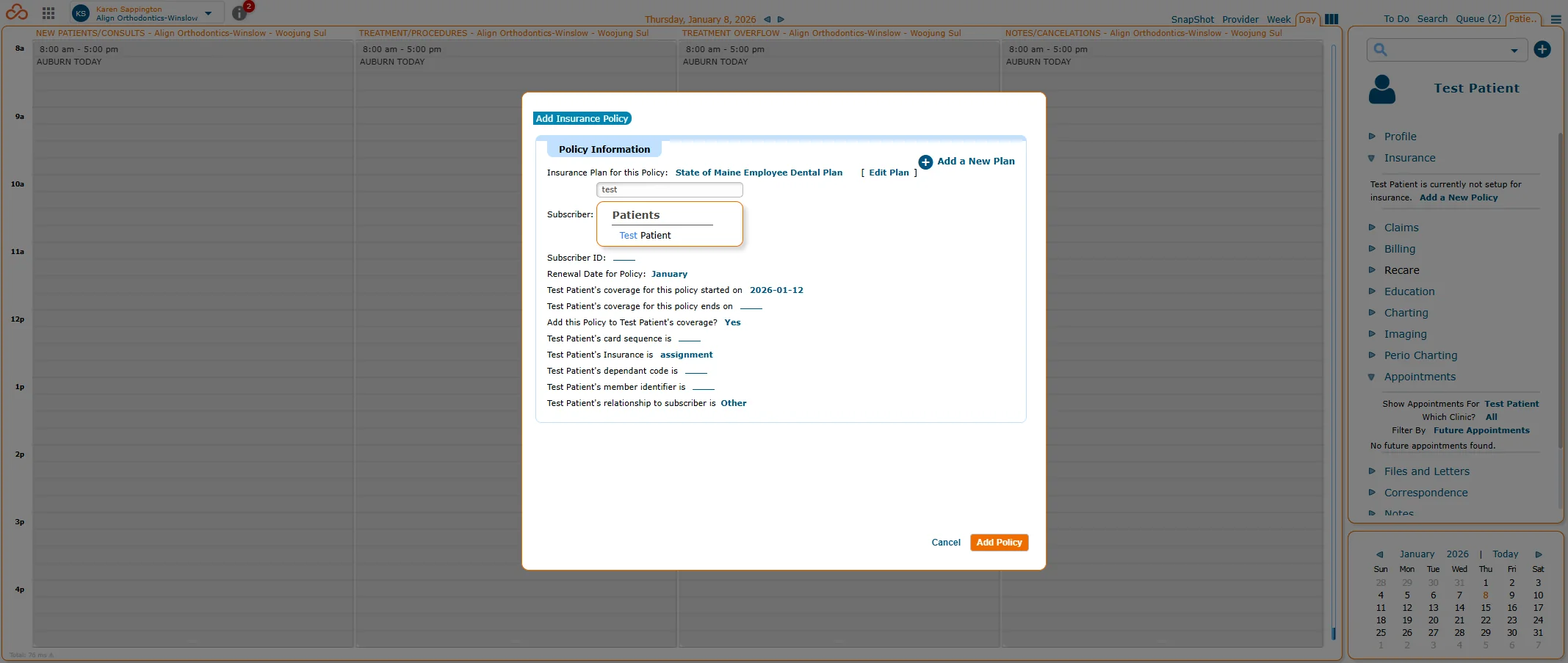
Change subscriber to correct subscriber by typing their name then selecting them from the list. They will need to be added as a non-patient first (if they're already in Curve as a patient that's fine too). You can add them in a separate screen if you haven't already done so.
5
In the text box next to Subscriber ID enter the full and correct subscriber ID exactly as it's listed on the insurance verification page, insurance coverage breakdown, or insurance card.
6
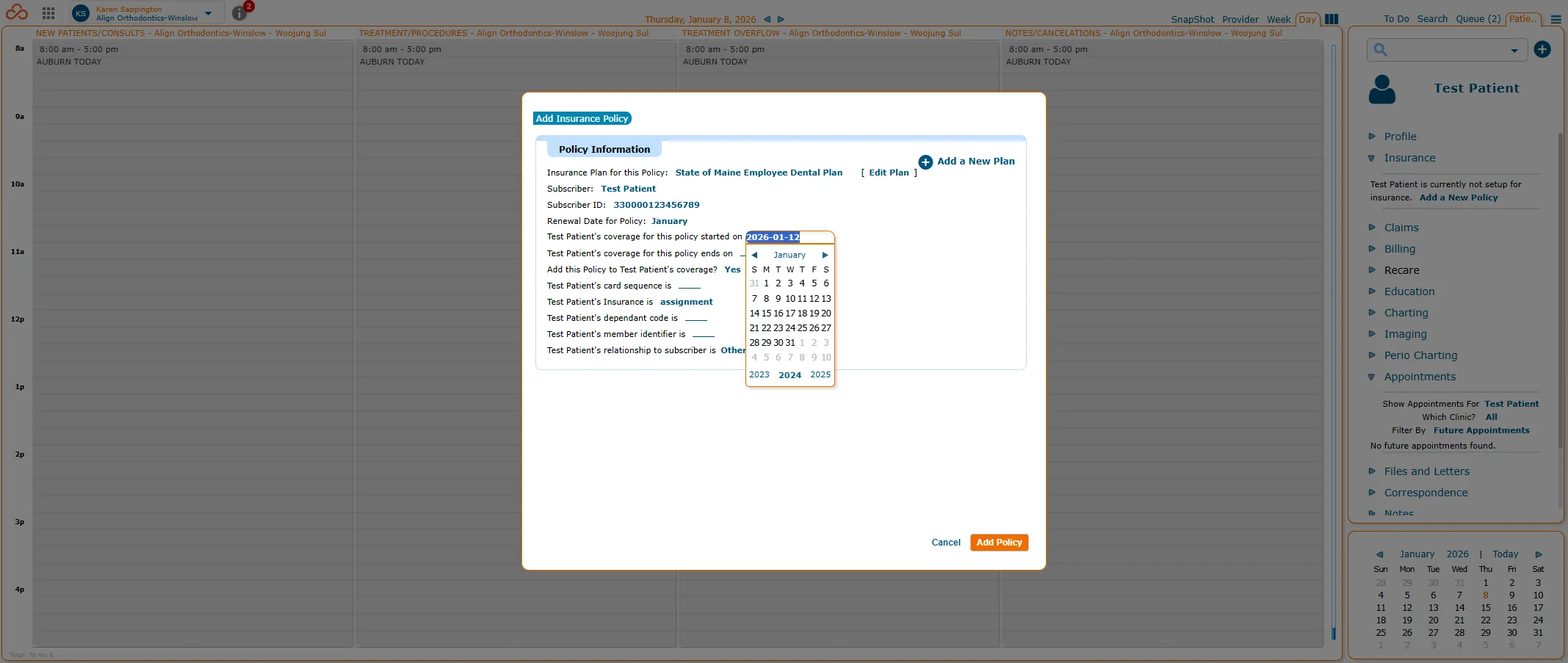
Click the date and change it to the date the policy became active. Also, if needed, change the renewal date to correct renewal month (this is rare, but does occur sometimes - if uncertain leave as January for now). You can click on the years on the bottom to scroll through the years, and the arrows scroll through the months. You can also type the year exactly in this format: YYYY-MM-DD, including hyphens.
7
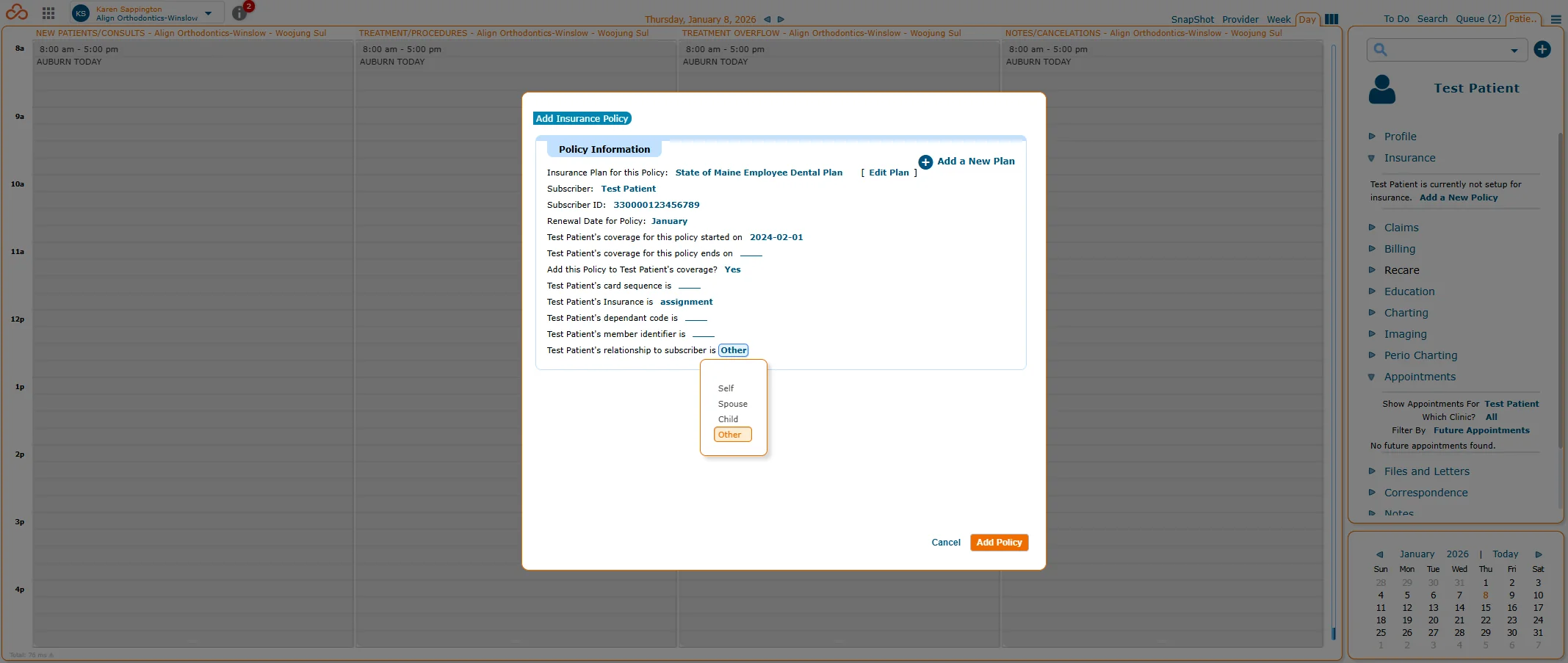
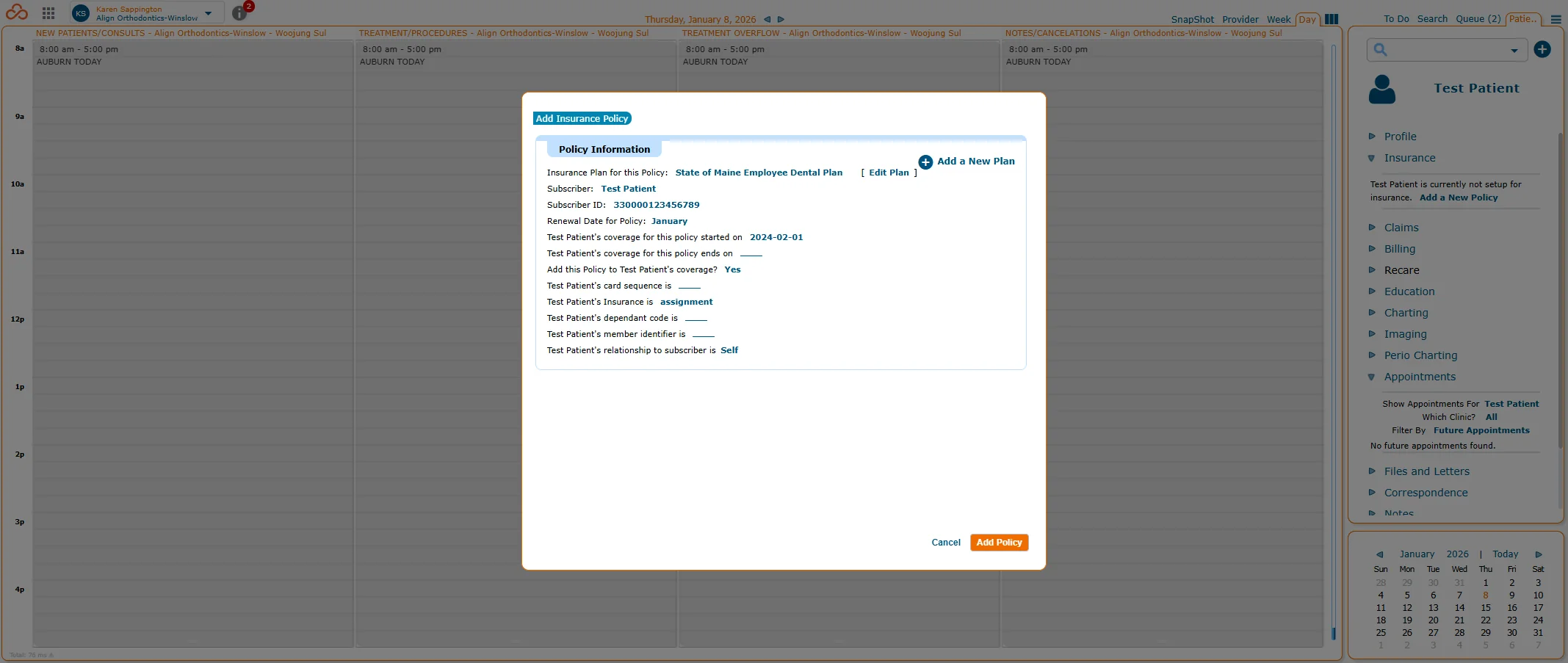
Change subscriber relationship to the correct drop down option.