1
Adding Multiple Tracks
You can replace tracks in your project, or add additional tracks. The steps are slightly different to replace vs. add and this article shows how to accomplish both objectives.
Sections in This Guide
REPLACE A TRACK
1
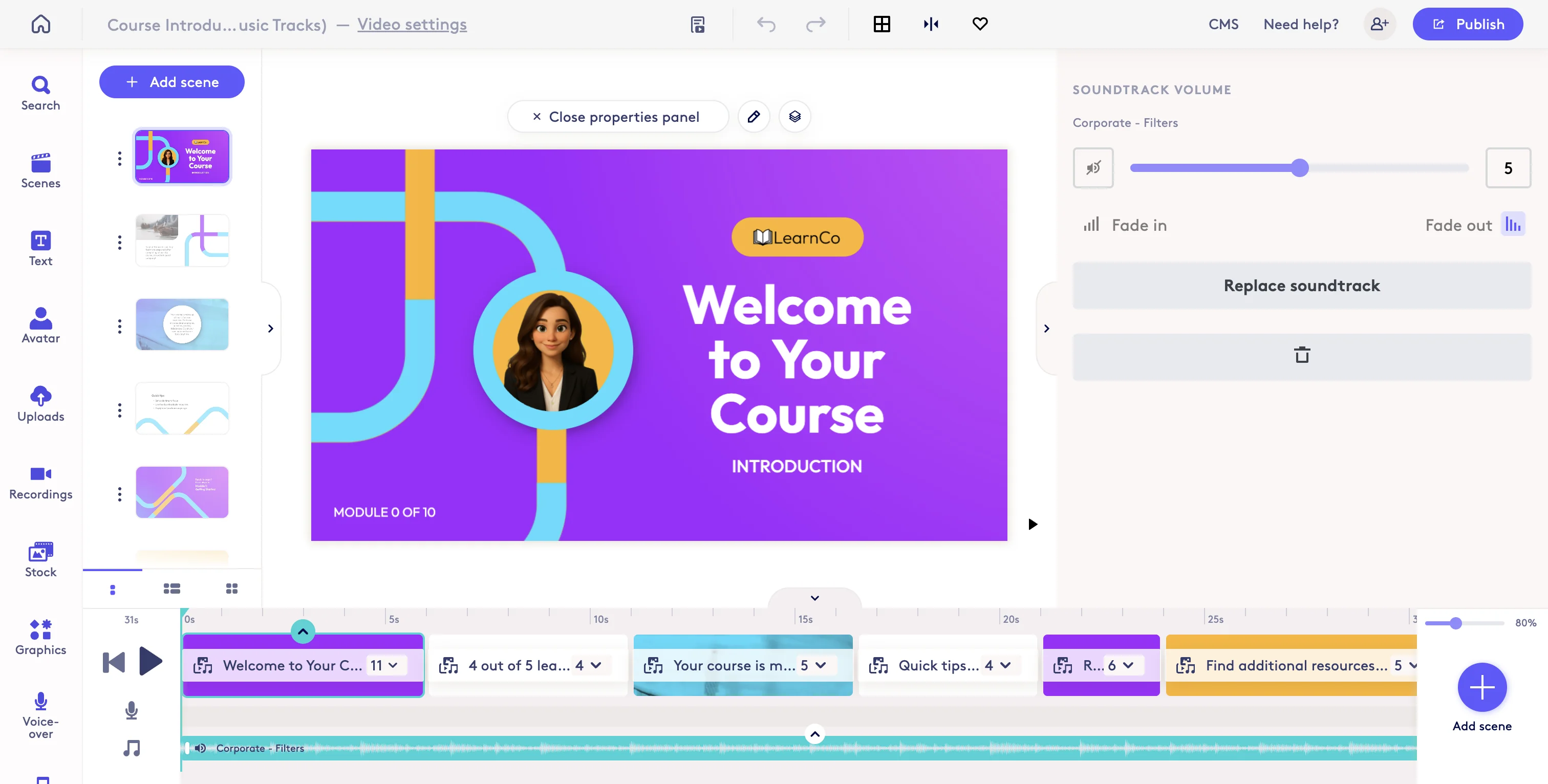
Select your existing track in the timeline. Click the music icon.

2
Click on 'Corporate - Filters'
3
This will open the music library where you can select a new track to replace your existing track. You will see the replace icon.

ADD A SECOND (OR MULTIPLE) TRACK(S)
1
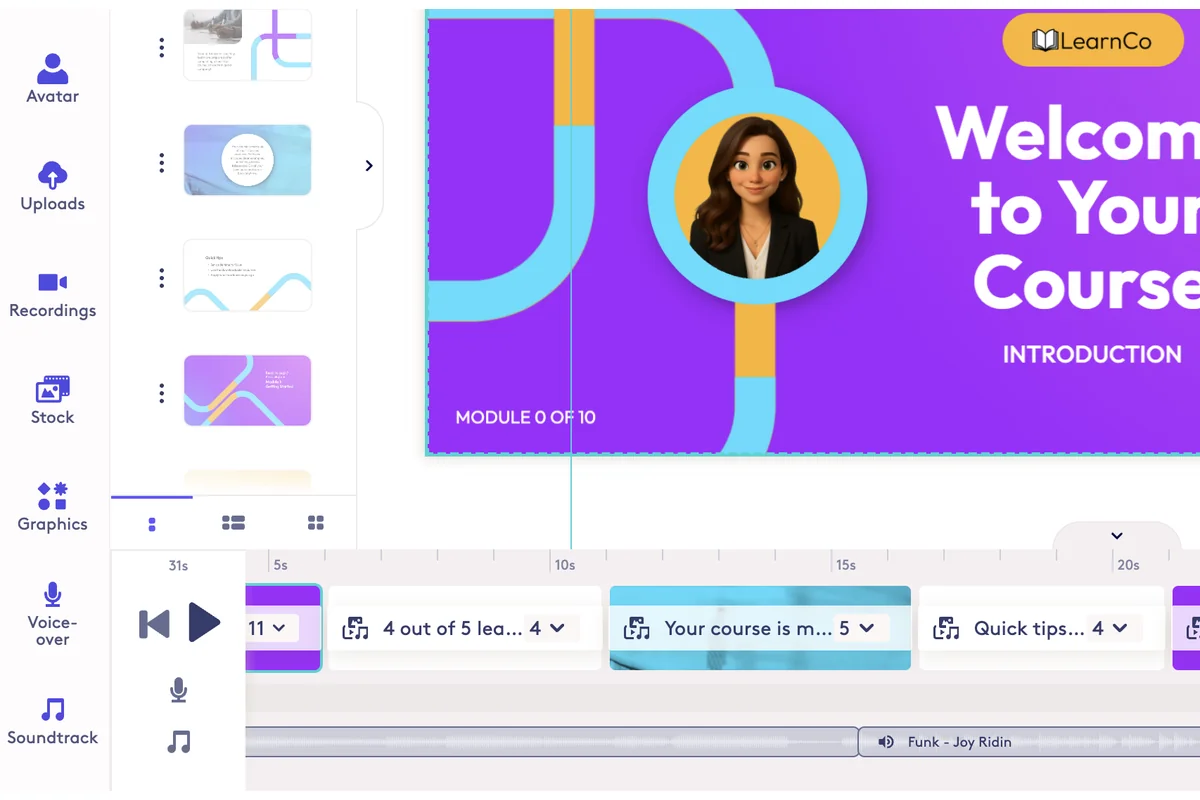
Click the Soundtrack or Music buttons. But make sure your existing track is NOT selected first.
2
This will open the msuic library where you can add an additional track. The plus icon is shown when tracks will be added instead of replaced.