This guide will walk you through how to apply a payment for a project that has not yet been marked as "Sold" in the system.
Steps:8
StepHopper User
StepHopperhttps://stephopper.com/
1
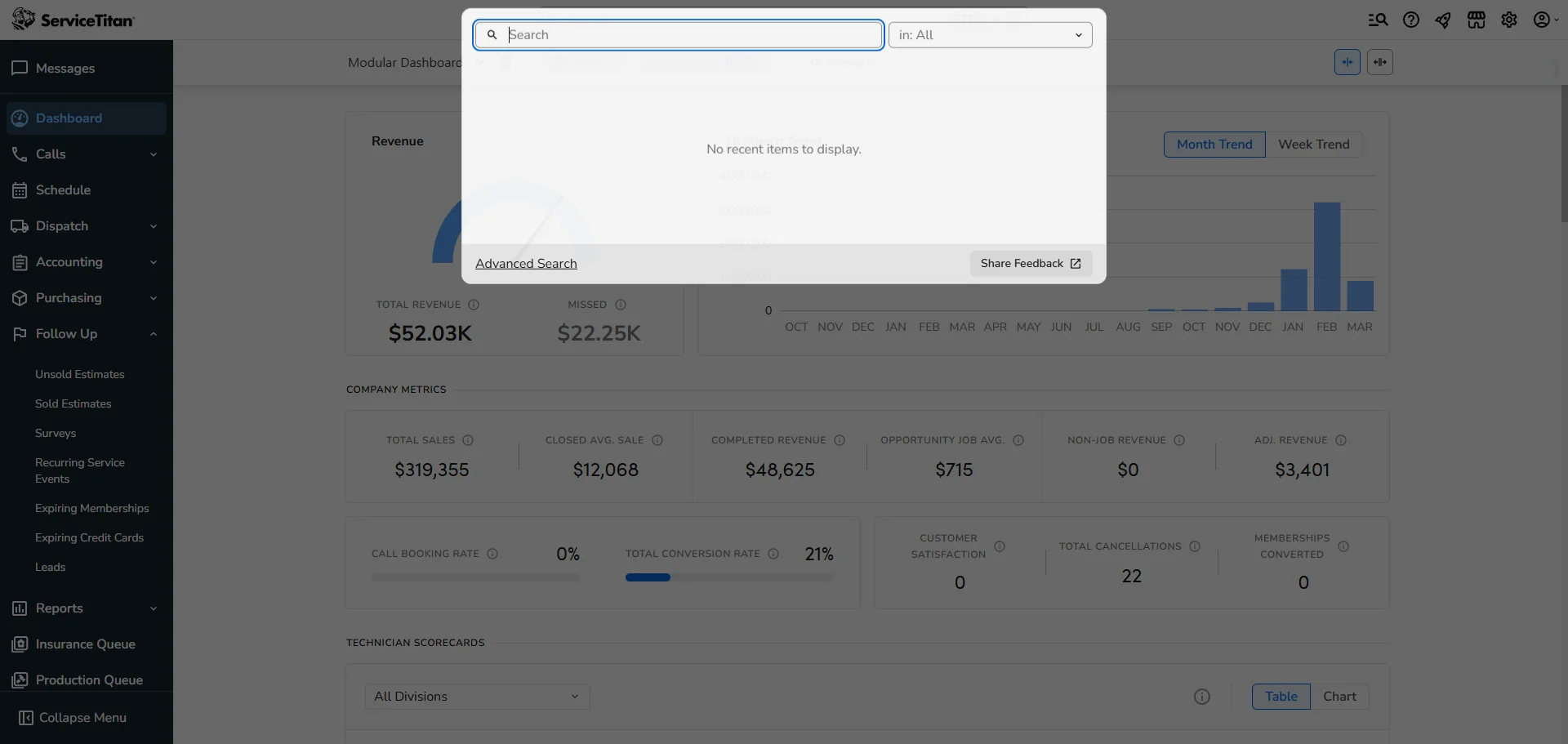
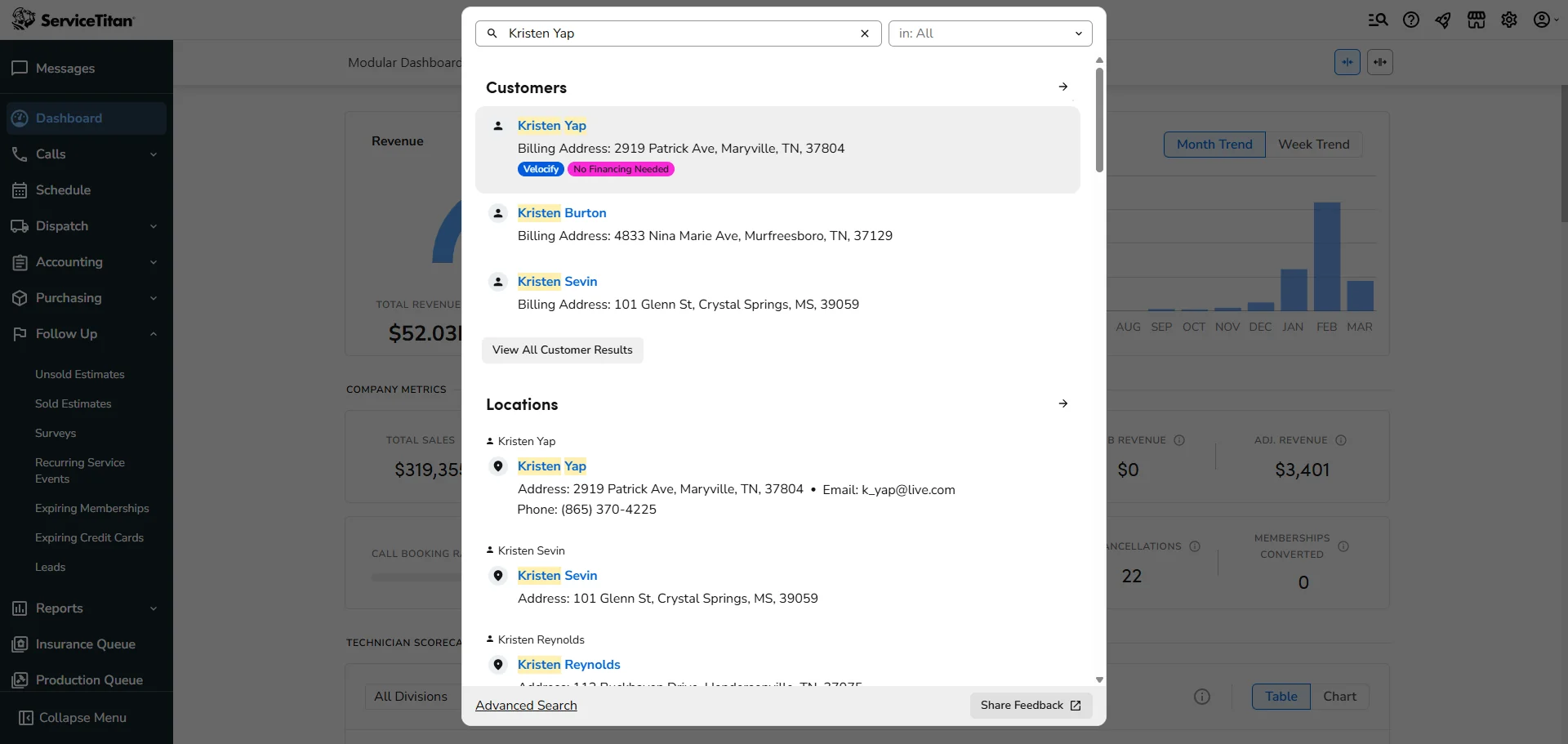
From Dashboards, search for the Customer's Account that you are applying the payment to.
2
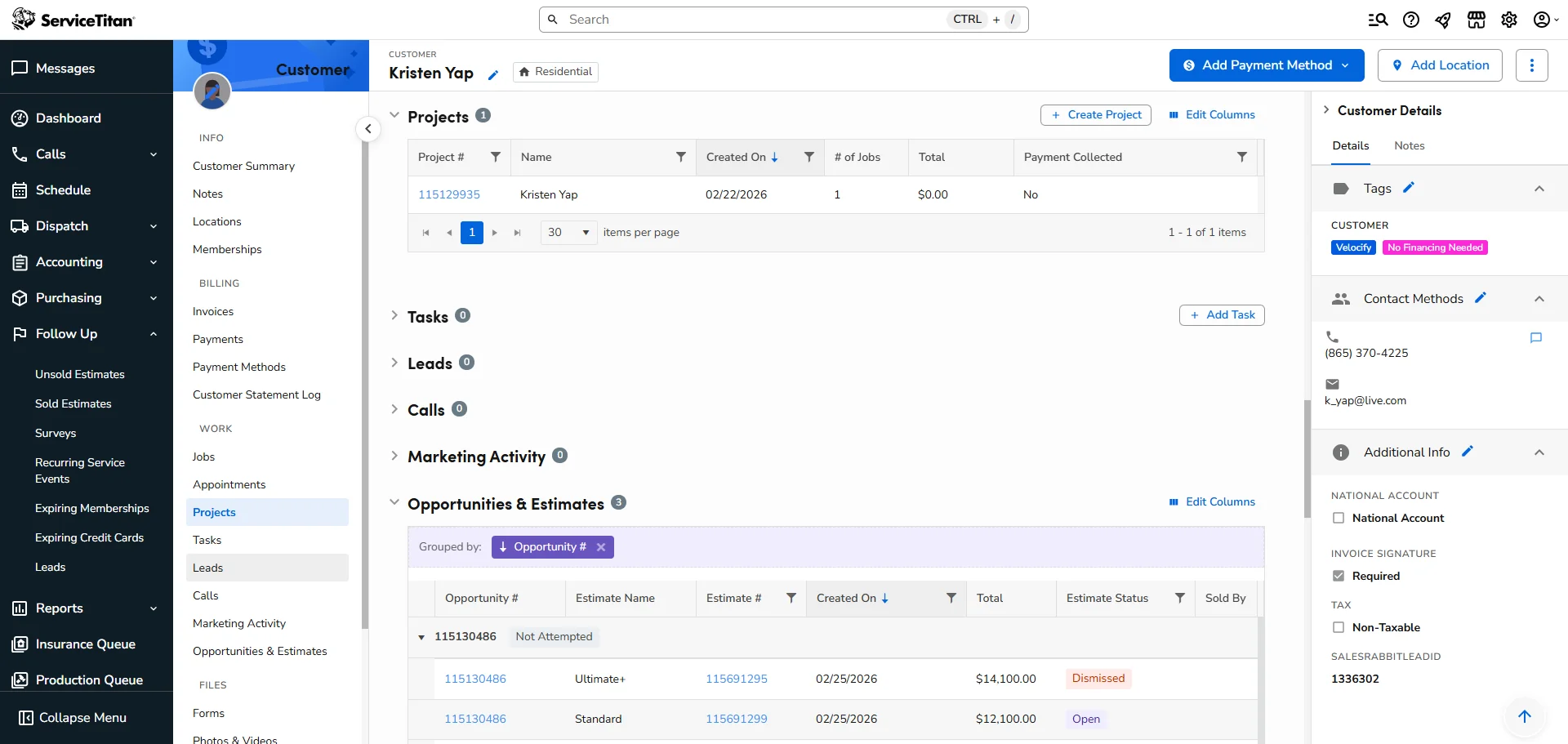
Click on Customer's account.
3
Look at the Customer menu to the left and click on "Projects".
4
Click on the "Project Number" that is highlighted in Blue.
5
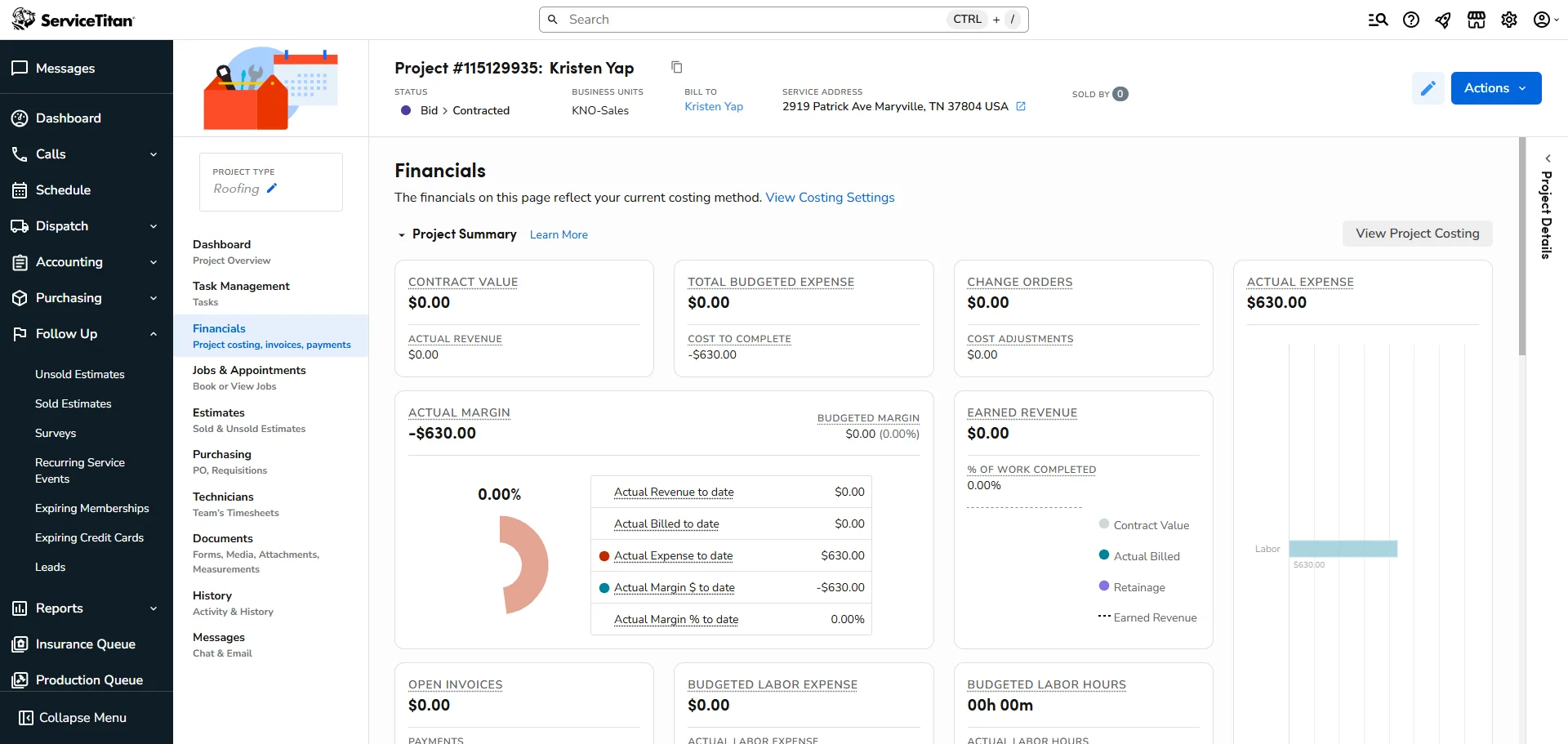
Look at the menu to the left again and select the "Financials" tab.
6
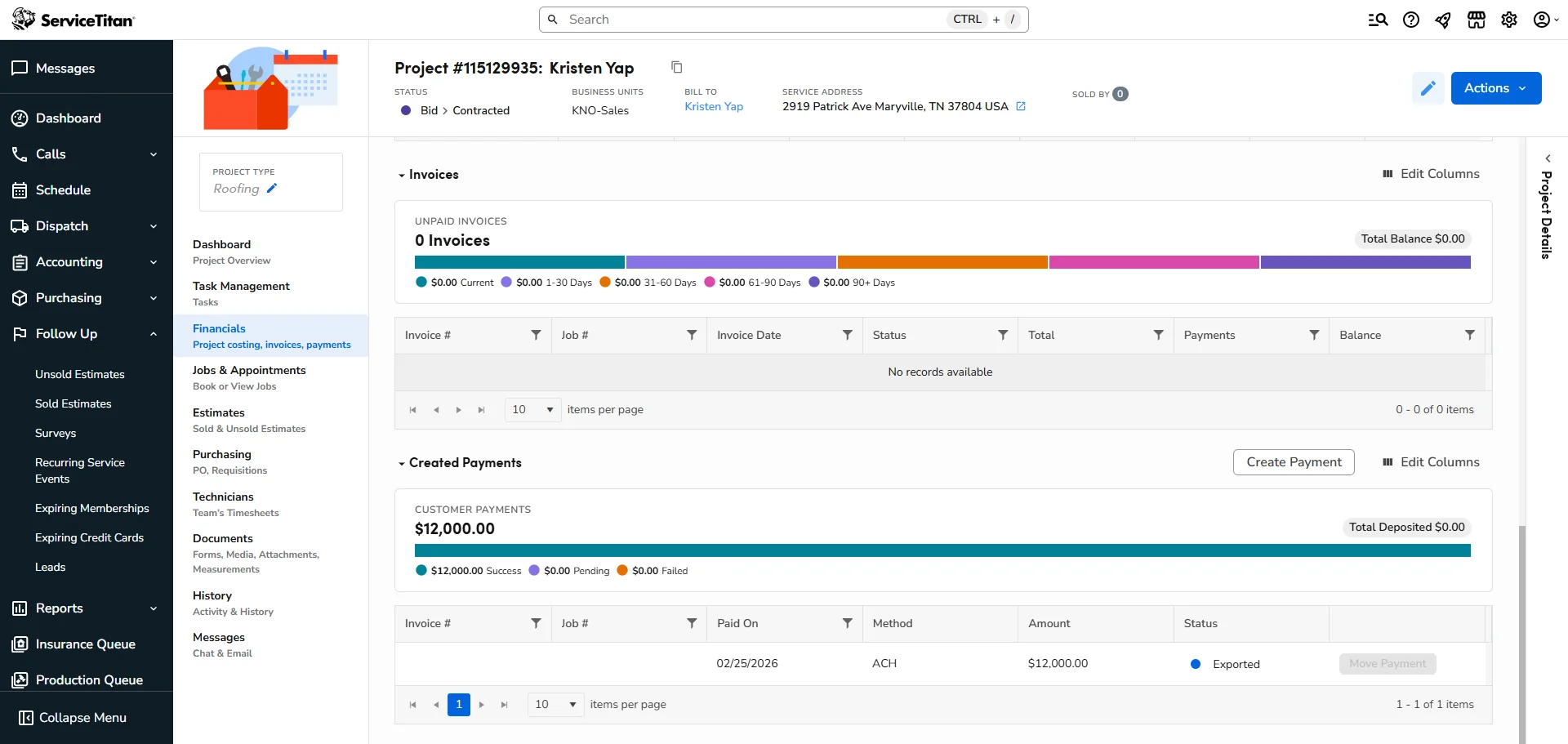
Scroll all the way down to the bottom of the page until you see this screen with the section that is titled "Created Payments". Now click on the "Create Payment" button to the right of the title.
7
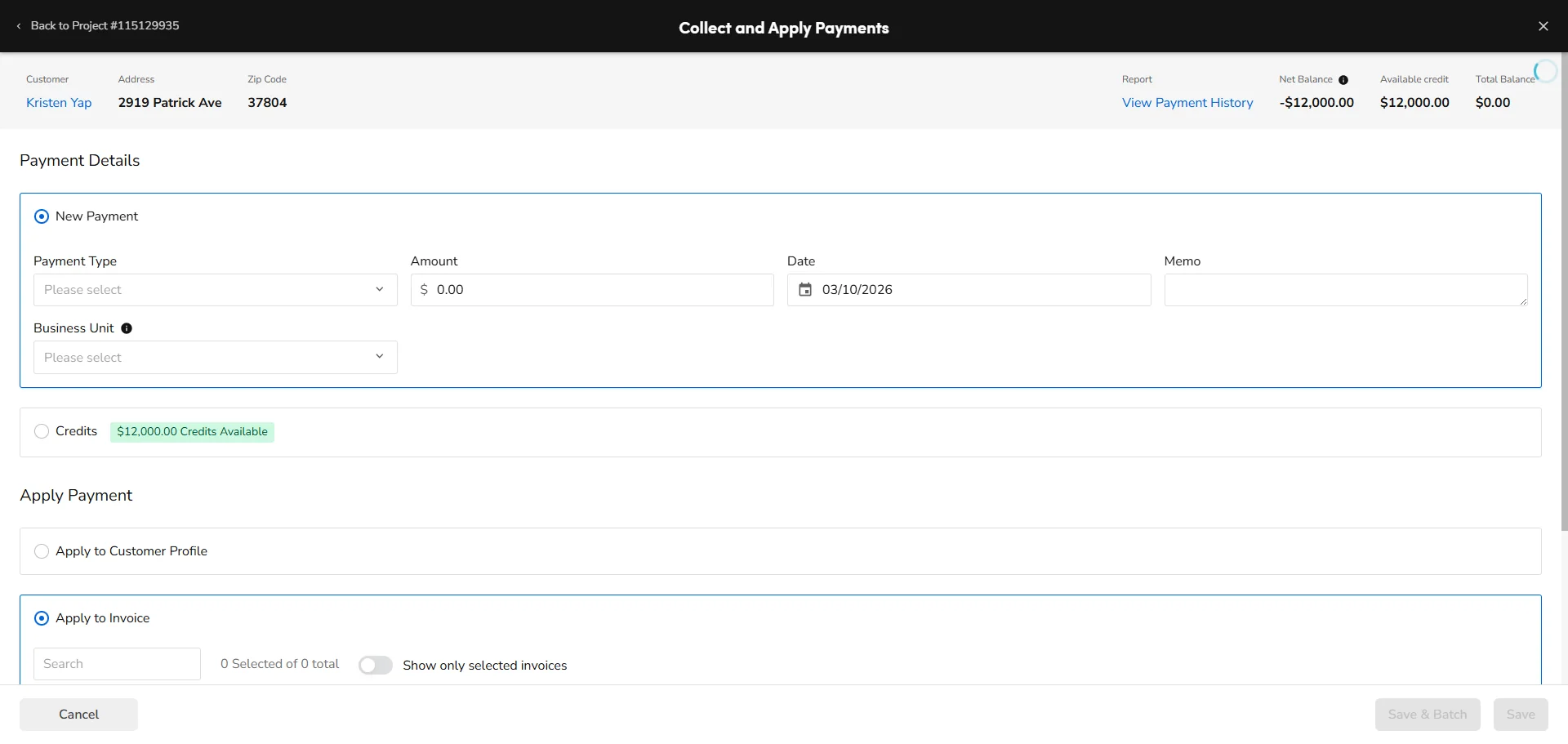
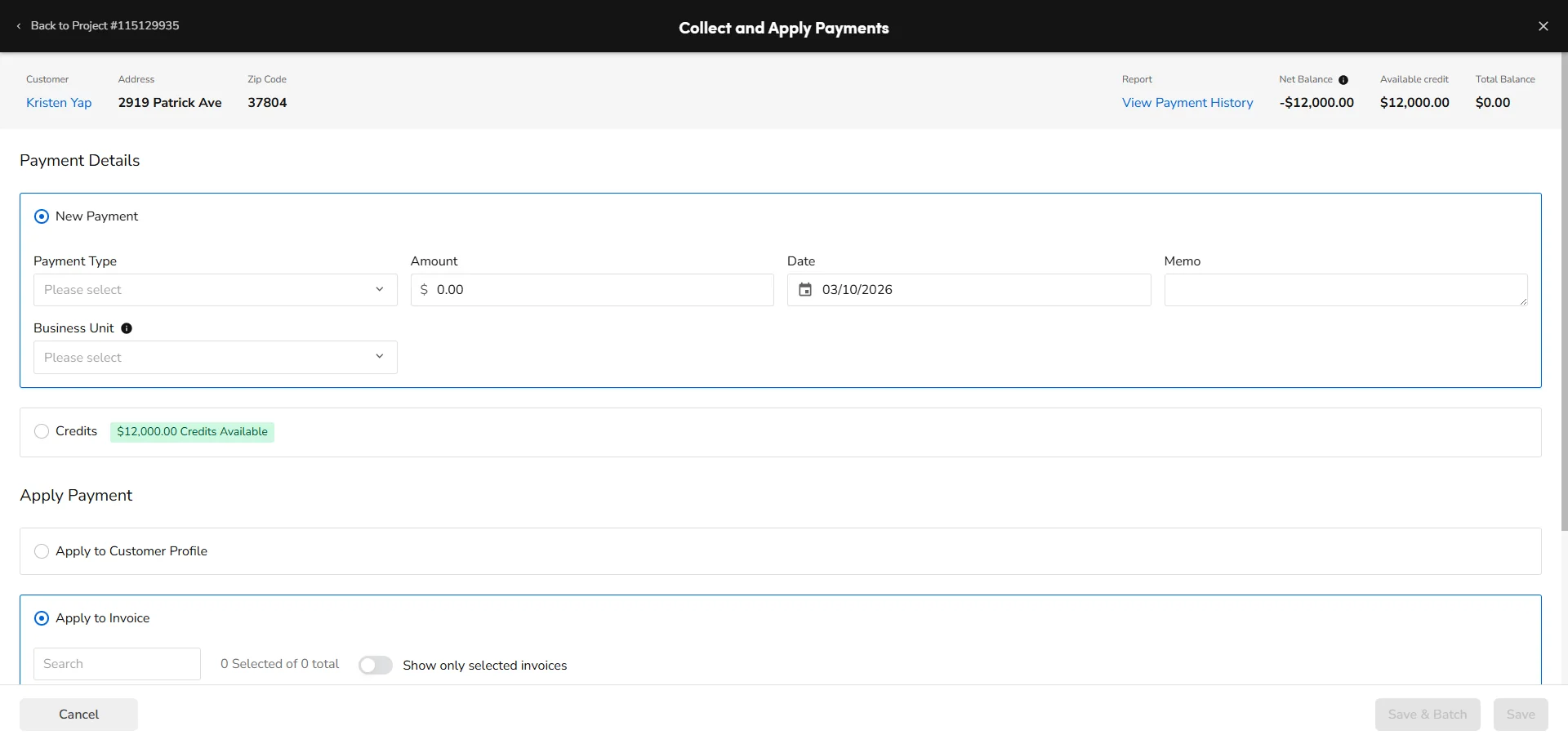
Now enter all payment information in the top box. Since you are collecting before the estimate is in "SOLD" status, you will select "Apply to Customer Profile". This will create a credit for the customer which will automatically apply to the project when it is started.
8
Be SURE to select "SAVE" before exiting this screen or the payment will not be recorded.