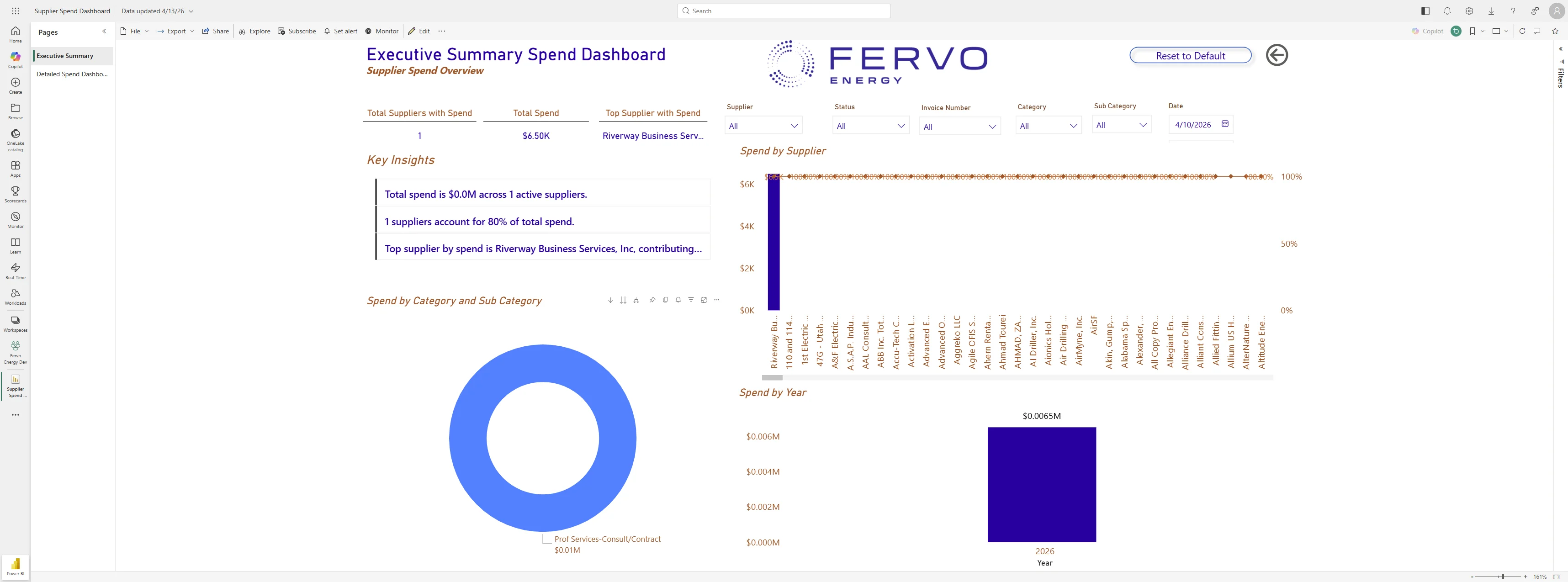
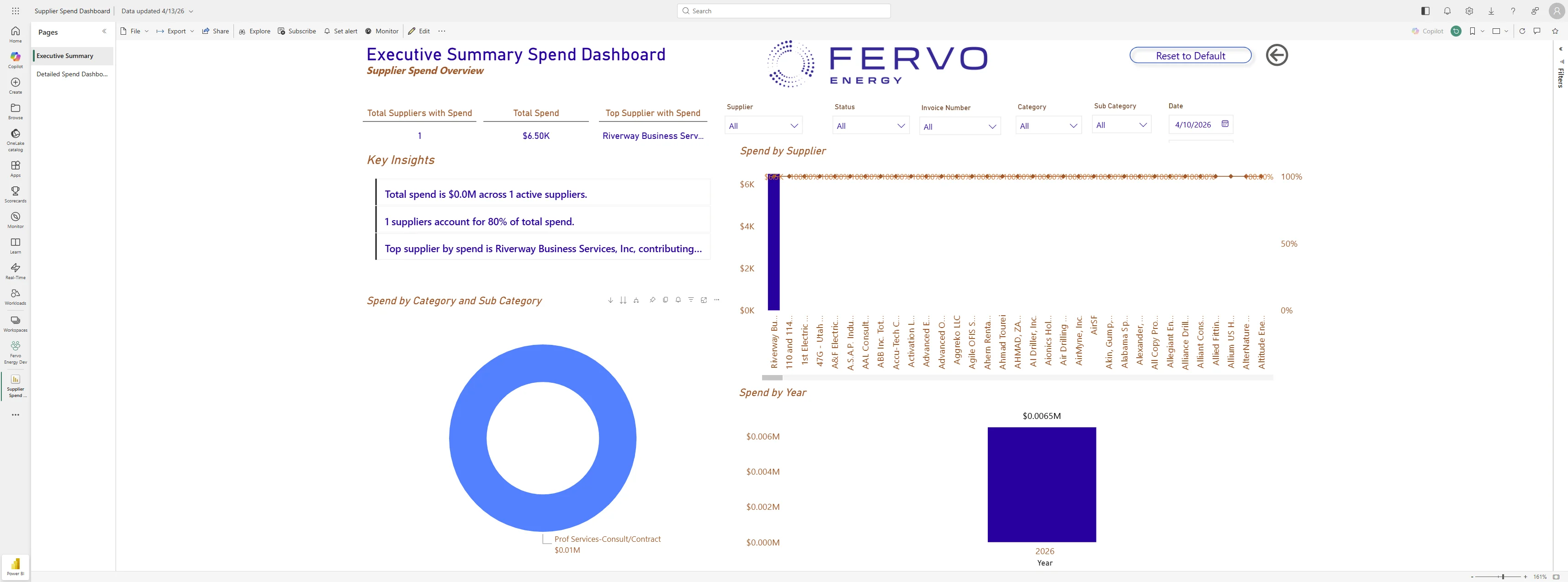
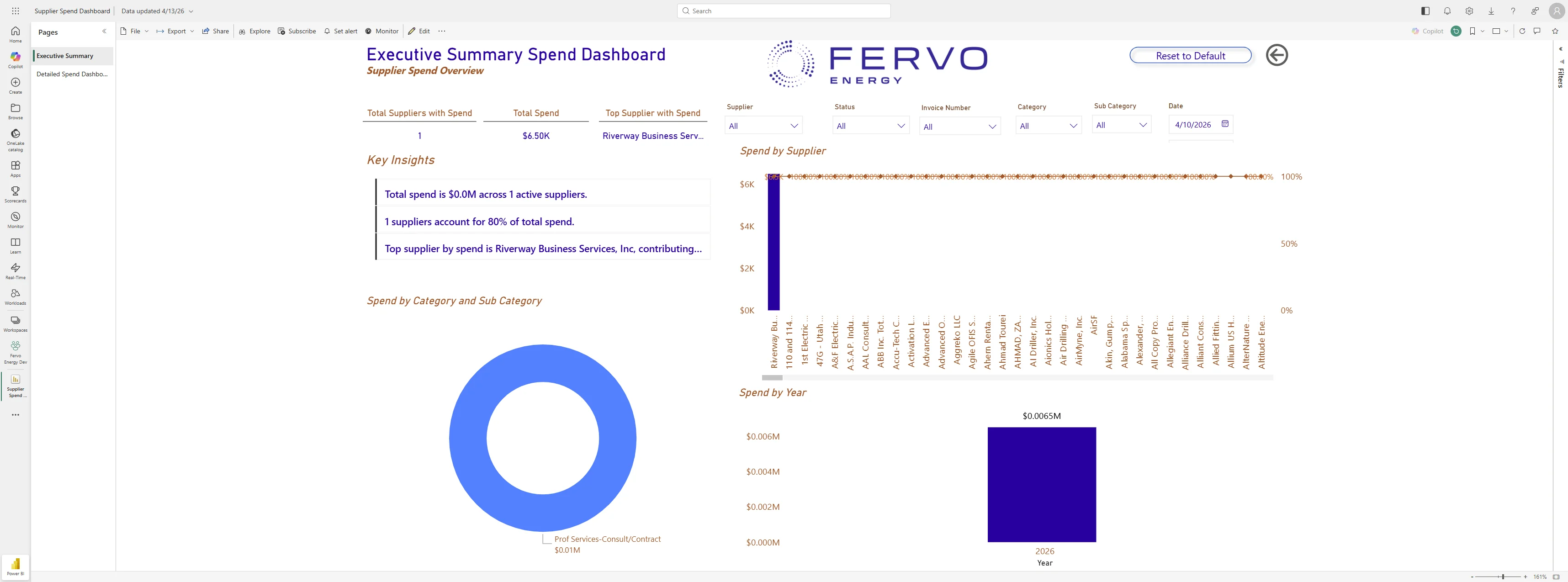
This guide will walk you through switching tenants in Power BI, including navigating to the Power BI service, selecting the appropriate tenant, and accessing your dashboards seamlessly.
Steps:20
StepHopper User
StepHopperhttps://stephopper.com/
1
Navigate to https://app.powerbi.com/
2
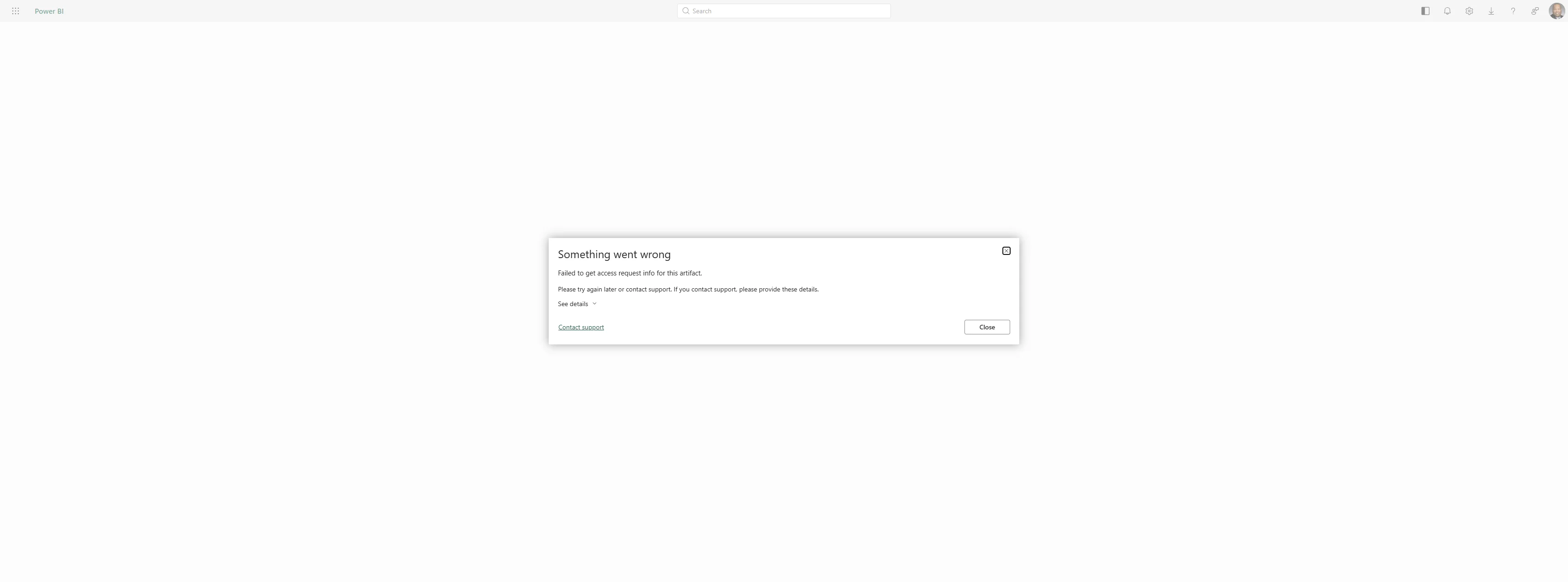
Starting point - initial view of the page
3
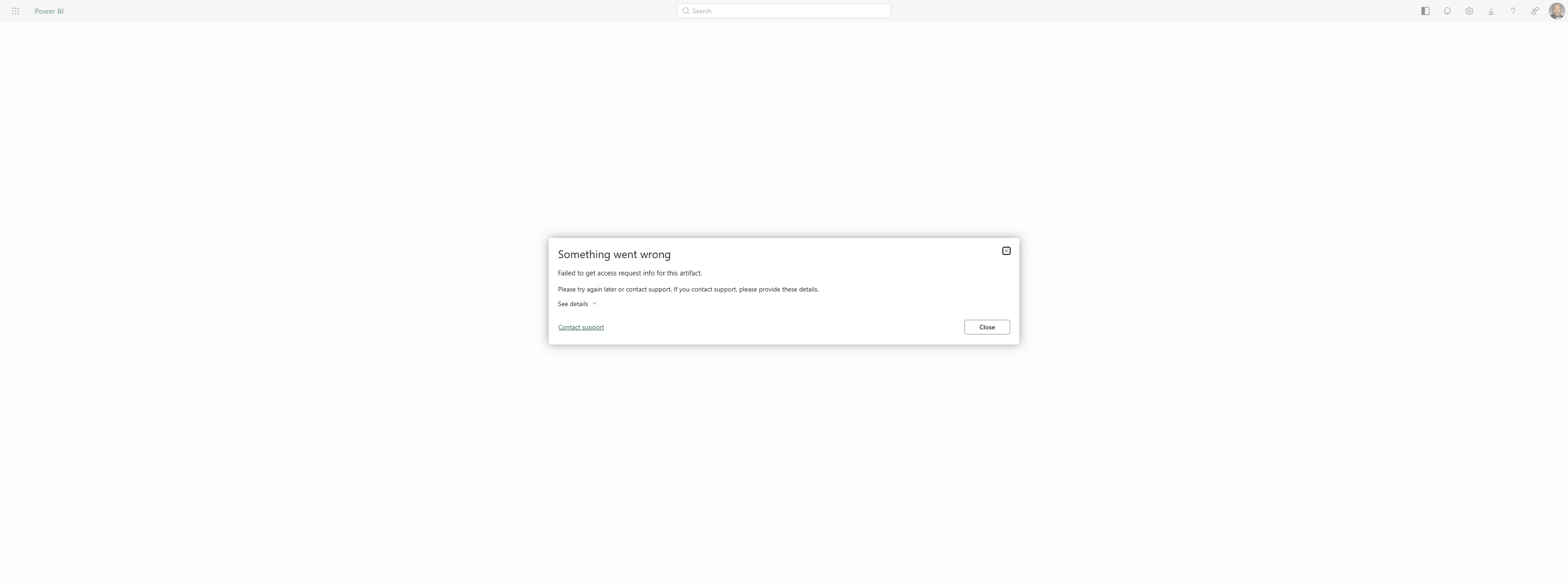
Click on 'Close'
4
Click on div
5
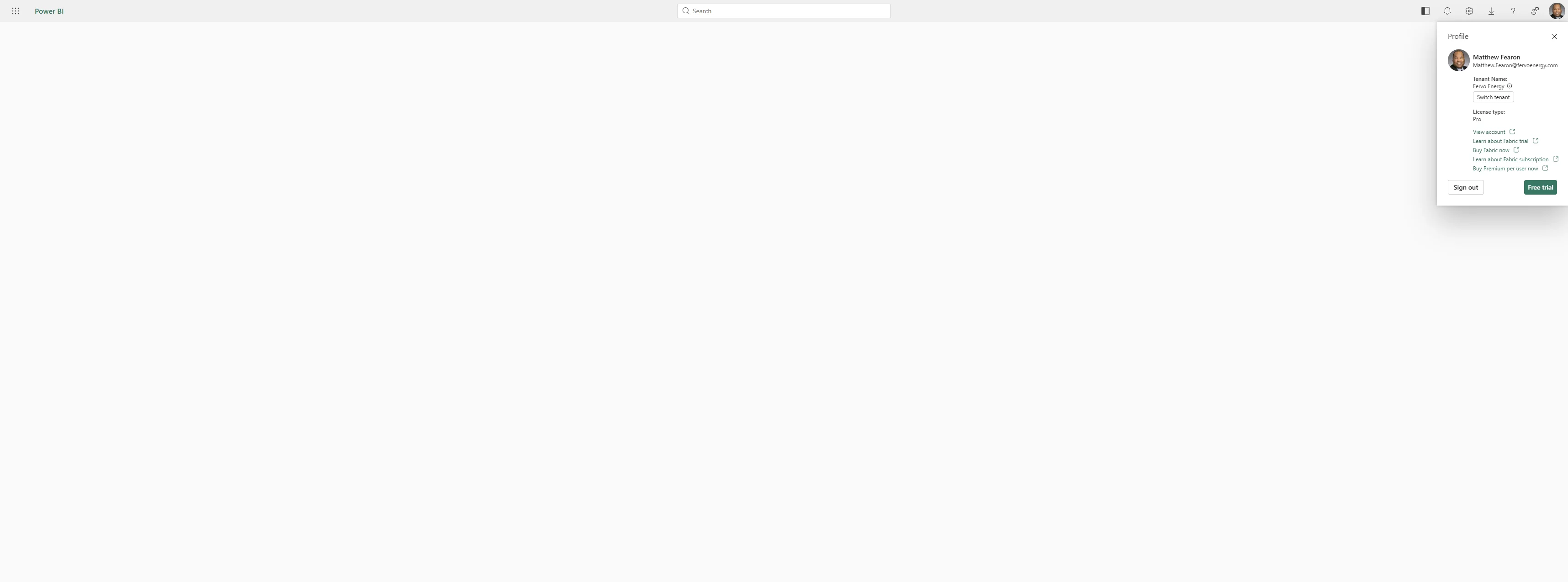
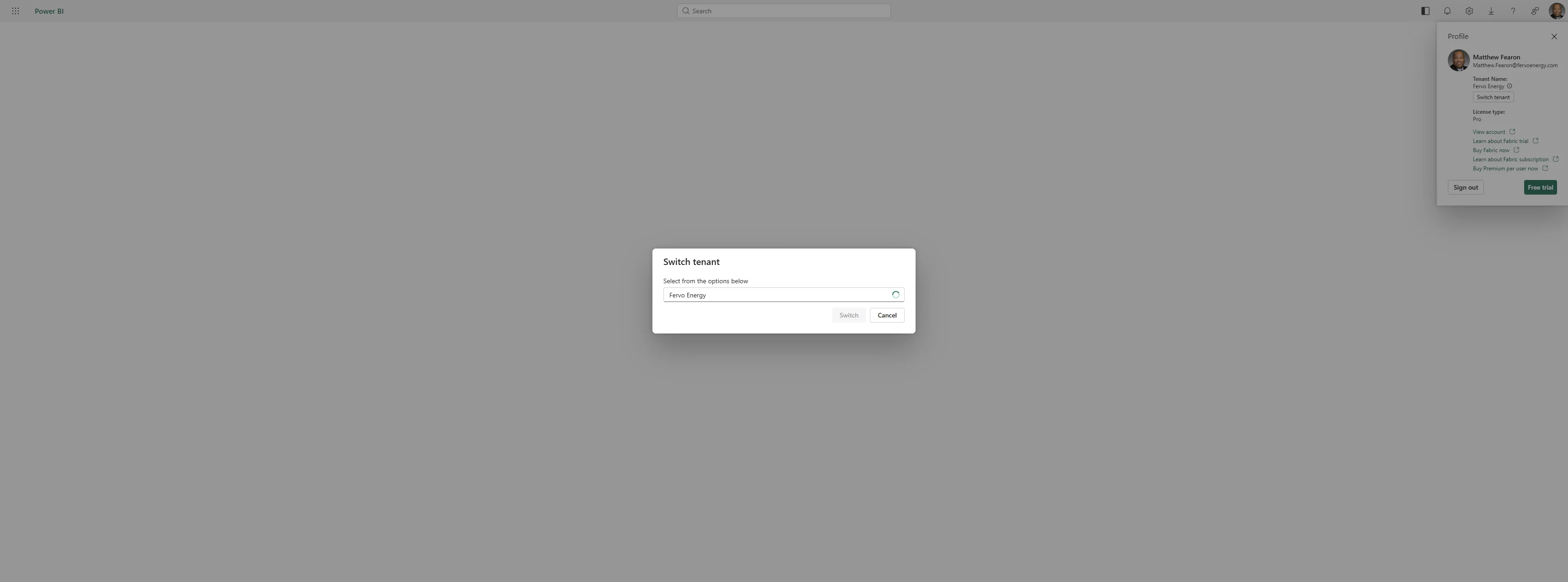
Click on 'Switch tenant'
6
Click on use
7
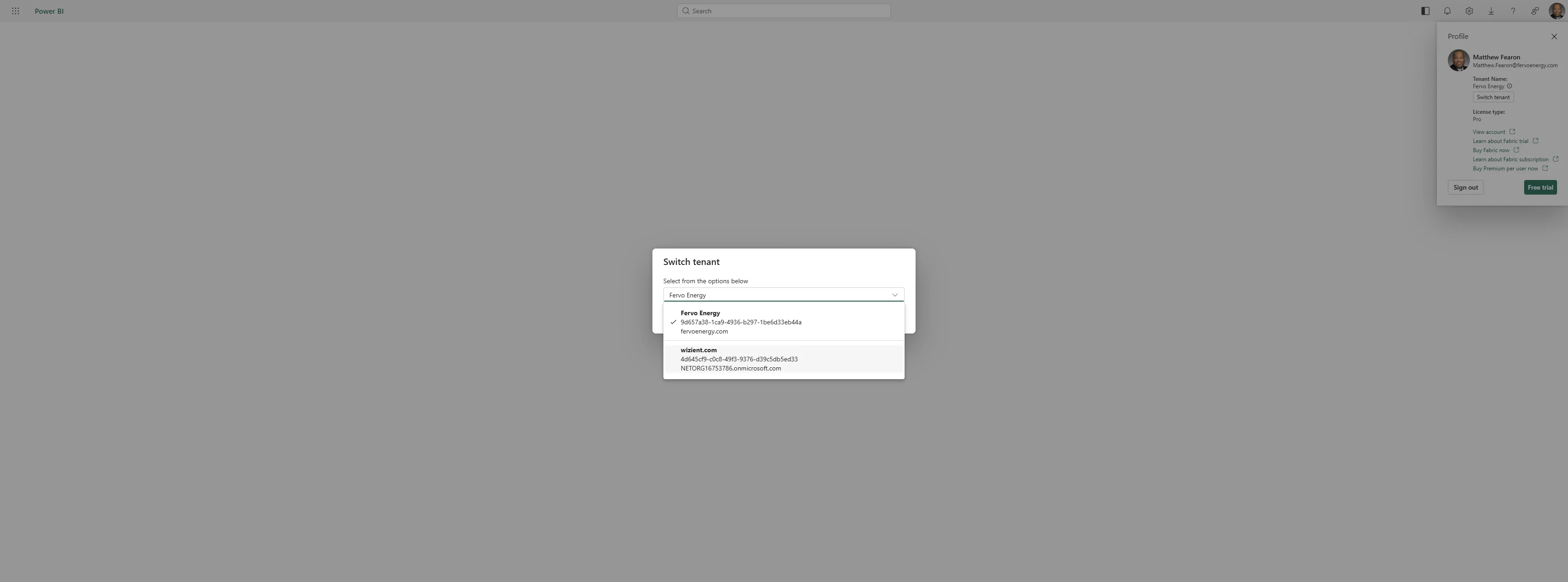
Click on 'NETORG16753786.onmicrosoft.com'
8
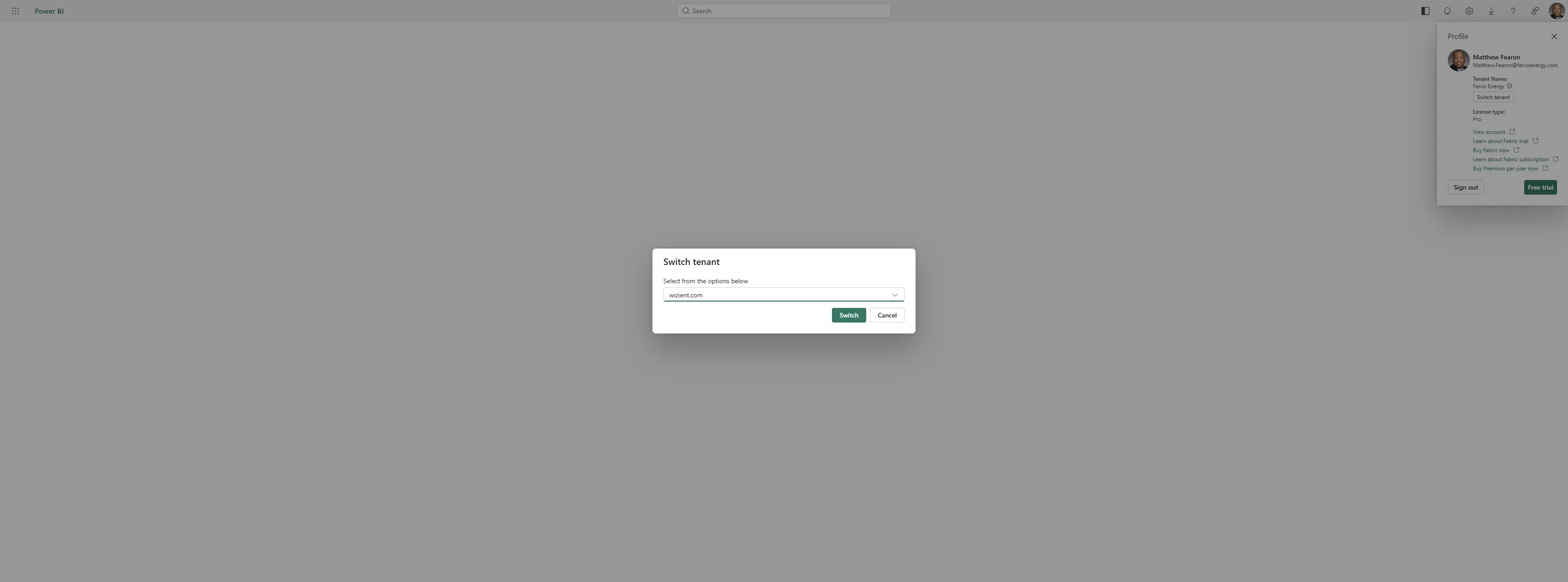
Click on 'Switch'
9
Navigate to https://app.powerbi.com/home?ctid=4d645cf9-c0c8-49f3-9376-d39c5db5ed33&experience=power-bi
10
Navigate to https://app.powerbi.com/home?ctid=4d645cf9-c0c8-49f3-9376-d39c5db5ed33
11
Navigate to https://app.powerbi.com/home?ctid=4d645cf9-c0c8-49f3-9376-d39c5db5ed33&experience=power-bi
12
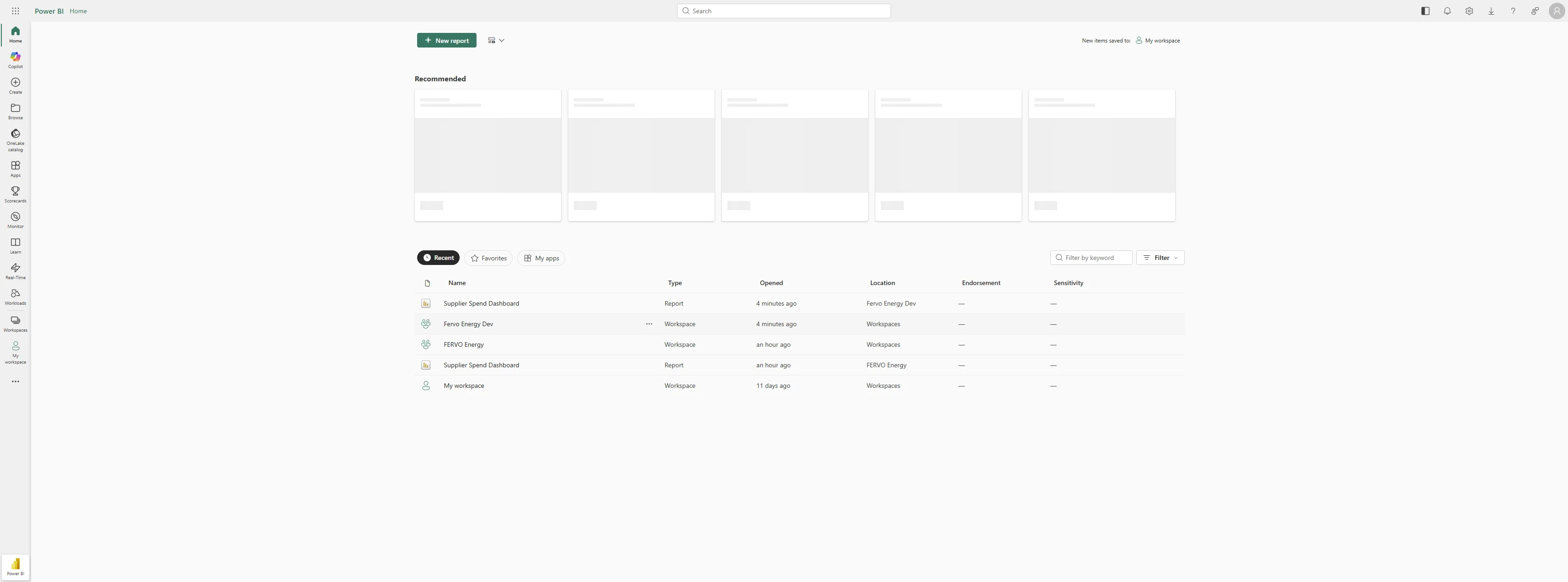
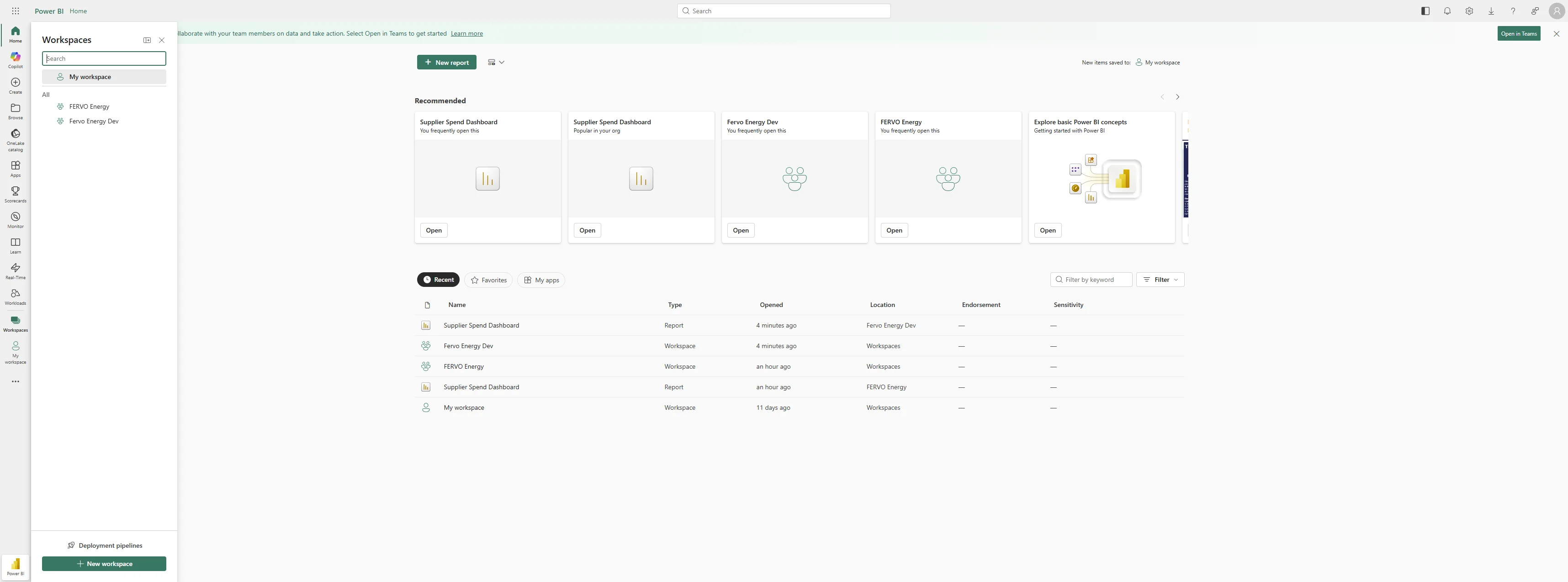
Click on 'Workspaces'
13
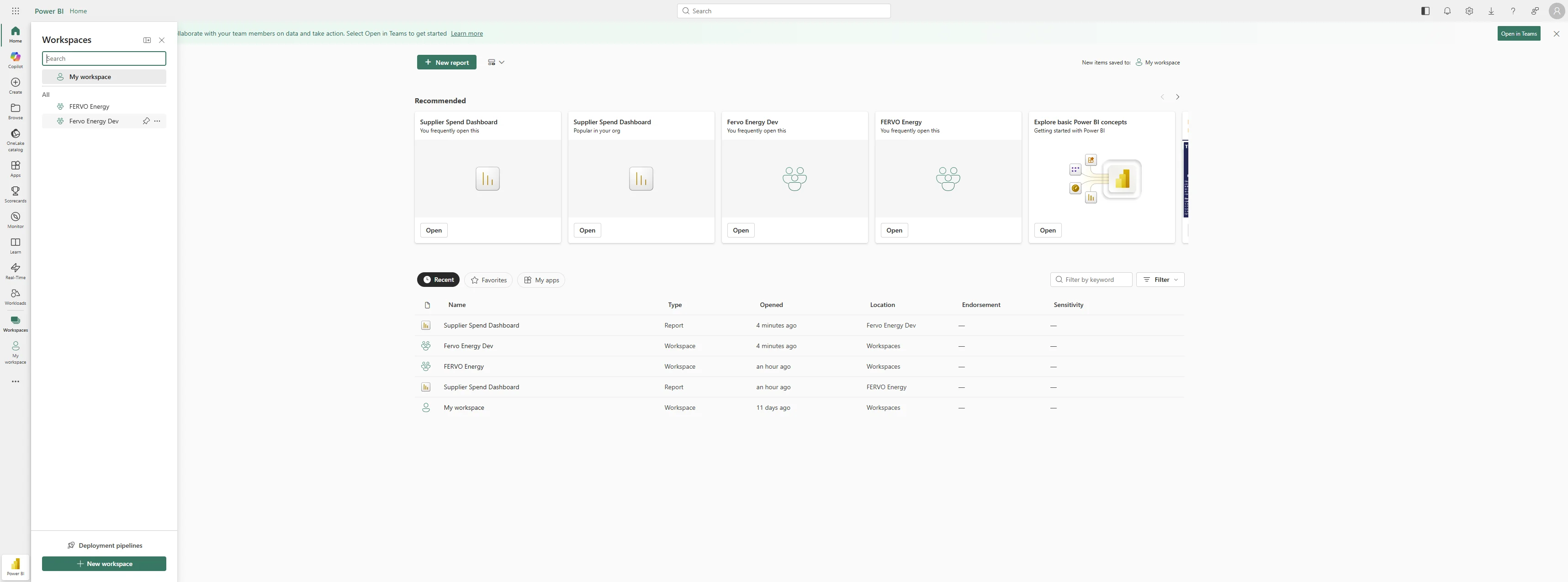
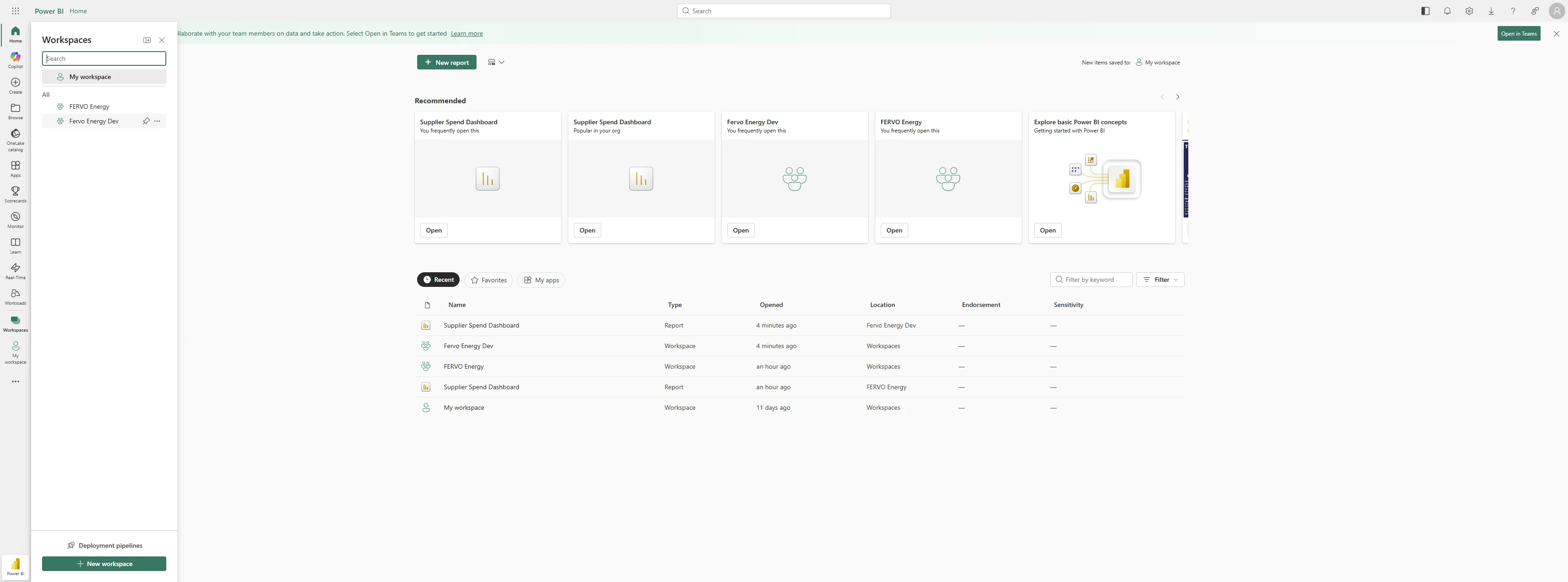
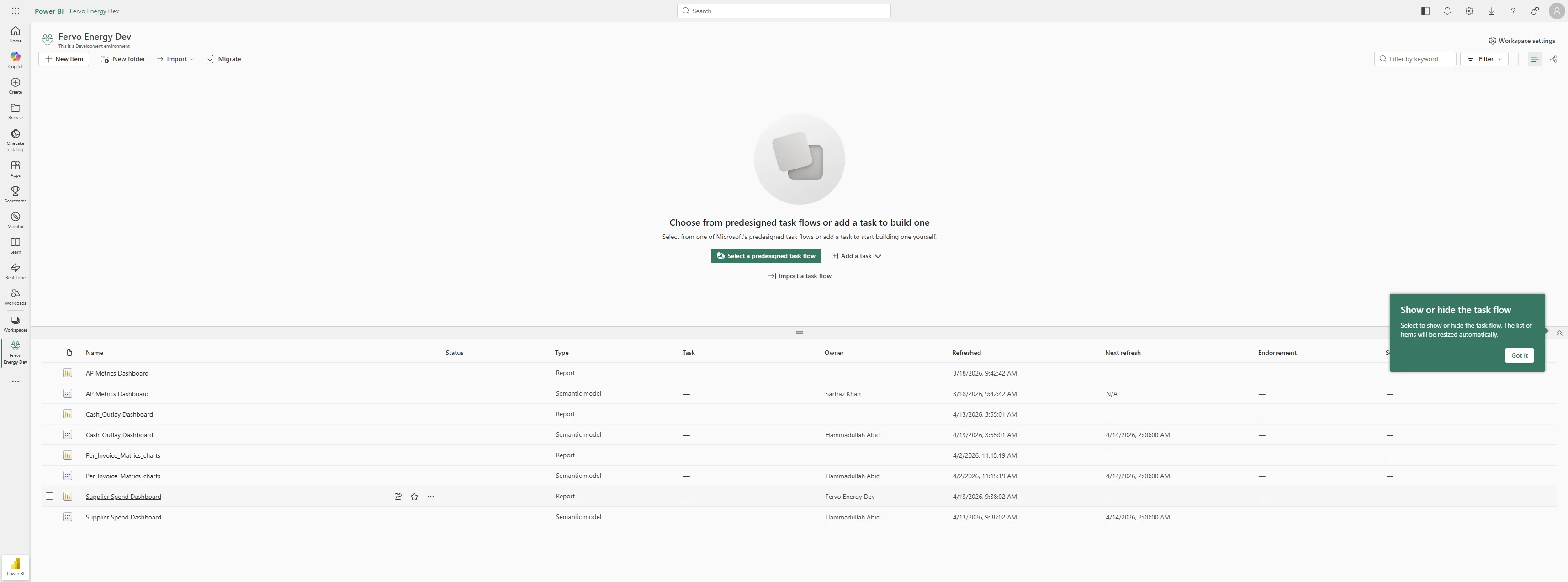
Click on 'Fervo Energy Dev'
14
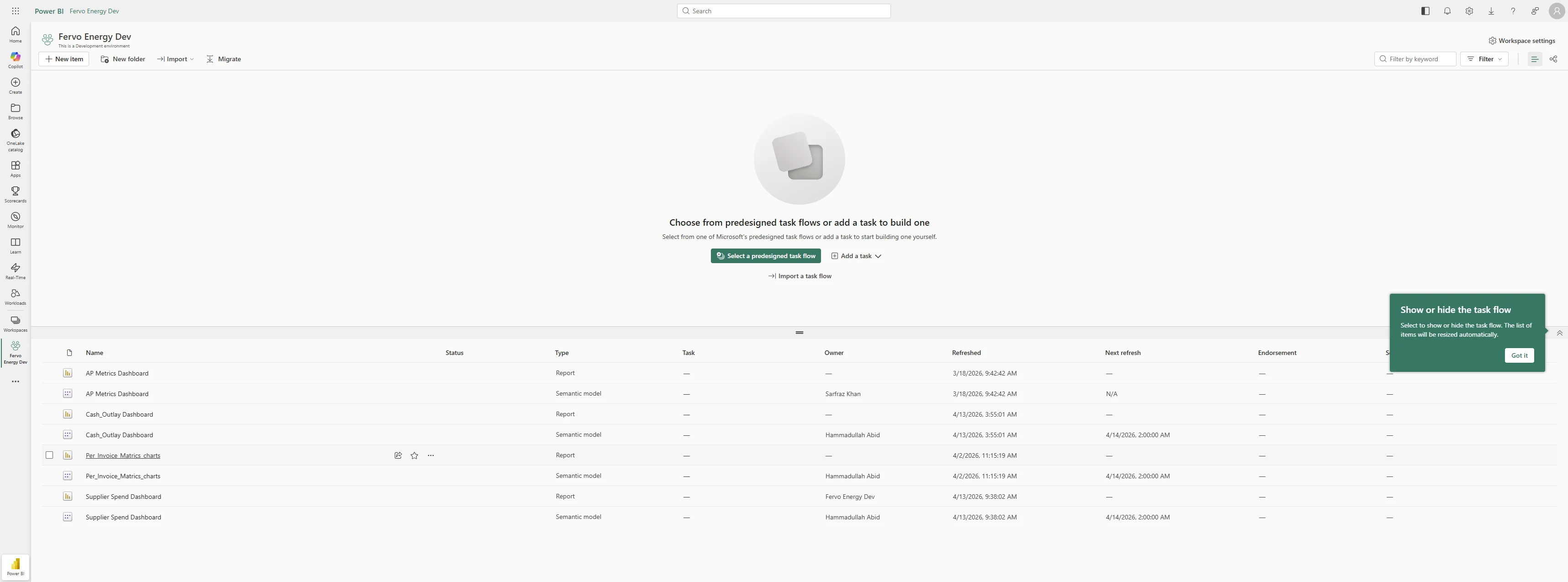
Navigate to https://app.powerbi.com/groups/a45c82e4-0359-44ae-901e-9dec599715ad/list?ctid=4d645cf9-c0c8-49f3-9376-d39c5db5ed33&experience=power-bi
15
Click on 'Supplier Spend Dashboard'
16
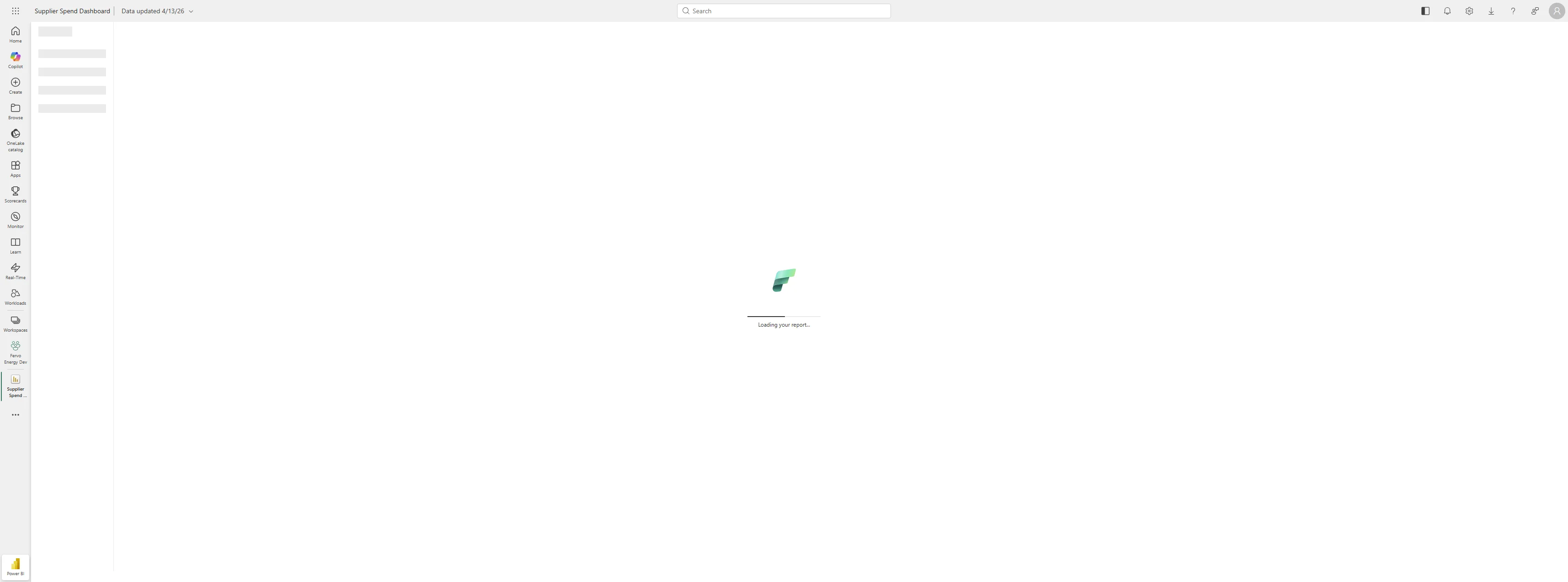
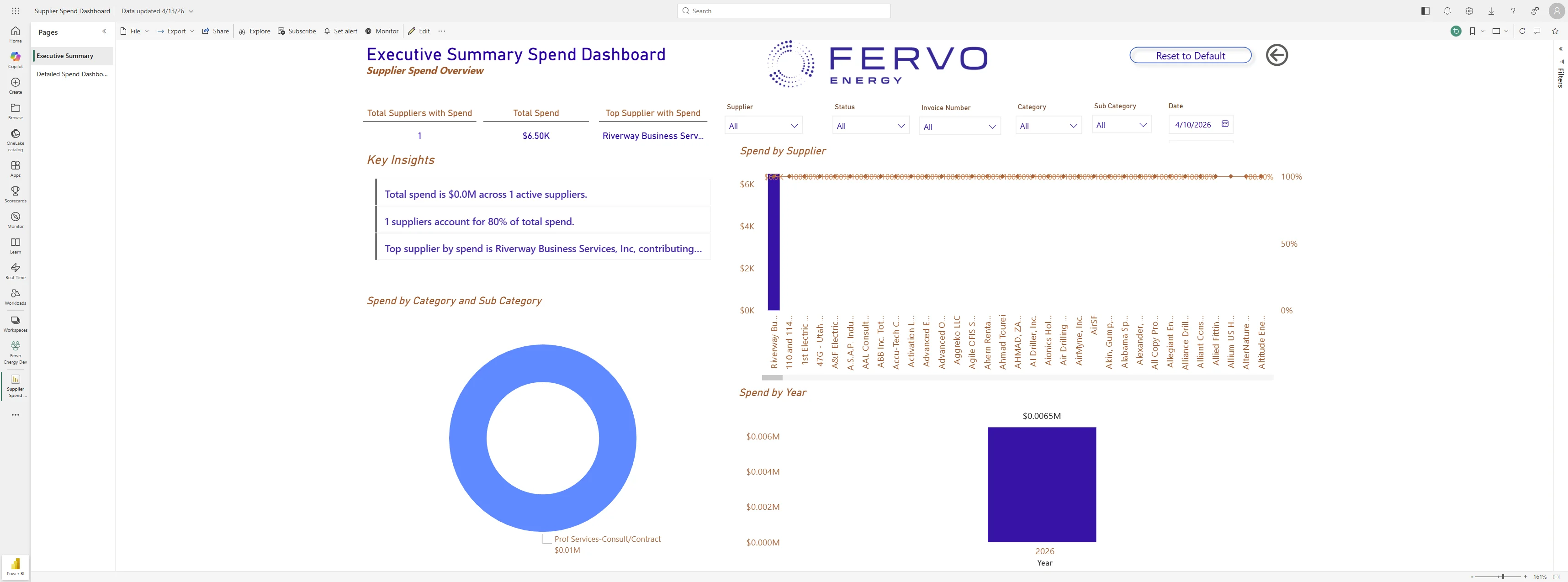
Navigate to https://app.powerbi.com/groups/a45c82e4-0359-44ae-901e-9dec599715ad/reports/2a23a090-0a04-46c2-b22d-3706a71db568/474fa5f5faac5c19277c?ctid=4d645cf9-c0c8-49f3-9376-d39c5db5ed33&experience=power-bi
17
Navigate to https://app.powerbi.com/groups/a45c82e4-0359-44ae-901e-9dec599715ad/list?ctid=4d645cf9-c0c8-49f3-9376-d39c5db5ed33&experience=power-bi
18
Navigate to https://app.powerbi.com/groups/a45c82e4-0359-44ae-901e-9dec599715ad/reports/2a23a090-0a04-46c2-b22d-3706a71db568?ctid=4d645cf9-c0c8-49f3-9376-d39c5db5ed33&experience=power-bi
19
Navigate to https://app.powerbi.com/groups/a45c82e4-0359-44ae-901e-9dec599715ad/list?ctid=4d645cf9-c0c8-49f3-9376-d39c5db5ed33&experience=power-bi
20
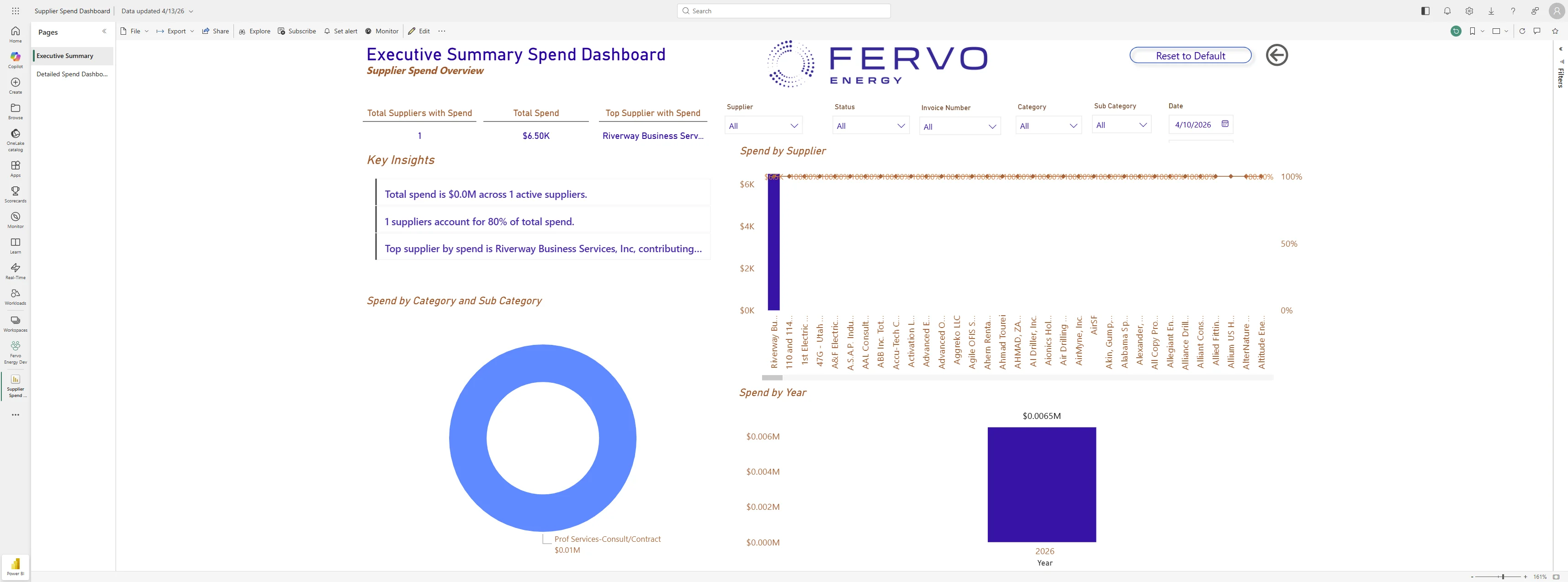
Navigate to https://app.powerbi.com/groups/a45c82e4-0359-44ae-901e-9dec599715ad/reports/2a23a090-0a04-46c2-b22d-3706a71db568/474fa5f5faac5c19277c?ctid=4d645cf9-c0c8-49f3-9376-d39c5db5ed33&experience=power-bi